Documents

Anatomy of a Quarto document

  • Anatomy of a Quarto document

  • Authoring Quarto

  • Changing formats

  • Presentations with reveal.js

  • PDFs with Typst

  • Dashboards

Anatomy of a Quarto document

.qmd file format with three components:

  1. YAML: Metadata

  2. Text: Markdown

  3. Code: R, Python, Observable, and Julia

Weave it all together, and you have beautiful, powerful, and useful outputs!

Anatomy of a Quarto document

Metadata: YAML

report.qmd
---
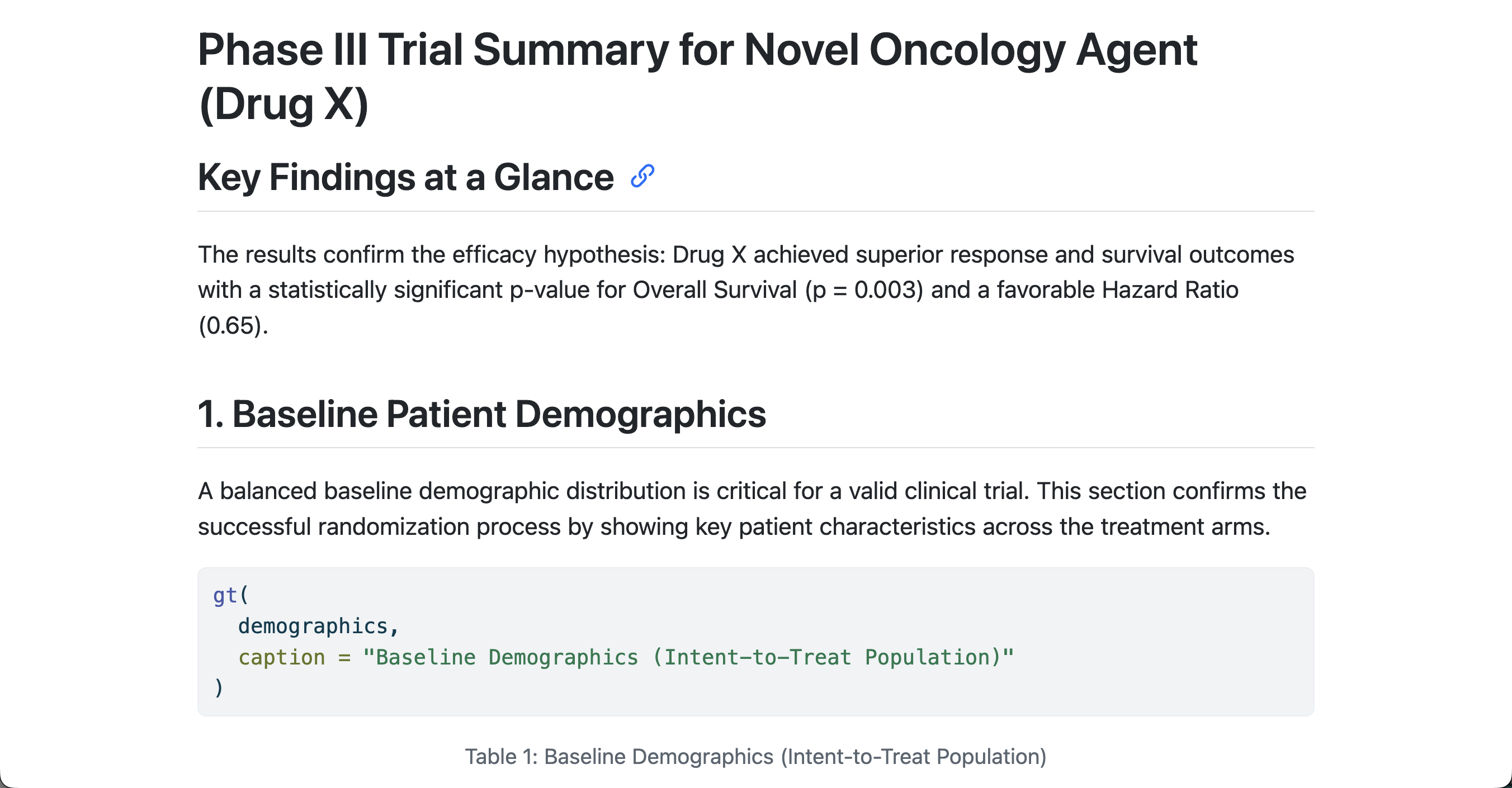
title: "Phase III Trial Summary for Novel Oncology Agent (Drug X)"
format: html
---

Anatomy of a Quarto document

Metadata: YAML

report.qmd
---
title: "Phase III Trial Summary for Novel Oncology Agent (Drug X)"
format: html
---
  • “Yet another markup language”
  • Metadata of your document
  • Demarcated by three dashes (---) on either end
  • Uses key-value pairs in the format key: value

Anatomy of a Quarto document

Text: Markdown

report.qmd
---
title: "Phase III Trial Summary for Novel Oncology Agent (Drug X)"
format: html
---

Drug X achieved superior response and survival outcomes 
with a statistically significant p-value for Overall 
Survival (p = 0.003) and a favorable Hazard Ratio (0.65).
  • Markdown is a lightweight language for creating formatted text
  • Quarto is based on Pandoc and uses its variation of markdown as its underlying document syntax

Anatomy of a Quarto document

Text: Markdown

Markdown syntax Output
*italics* and **bold**
italics and bold
superscript^2^ / subscript~2~
superscript2 / subscript2
~~strikethrough~~
strikethrough
`verbatim code`
verbatim code

Anatomy of a Quarto document

Text: Markdown


Drug X achieved **superior** response and `survival outcomes`

Results in:

Drug X achieved superior response and survival outcomes

Anatomy of a Quarto document

Code

report.qmd
---
title: "Phase III Trial Summary for Novel Oncology Agent (Drug X)"
format: html
---

Drug X achieved superior response and survival outcomes 
with a statistically significant p-value for Overall 
Survival (p = 0.003) and a favorable Hazard Ratio (0.65).

```{r}
gt(
  demographics,
  caption = "Baseline Demographics (Intent-to-Treat Population)"
)
```

Anatomy of a Quarto document

Code

report.qmd
---
title: "Phase III Trial Summary for Novel Oncology Agent (Drug X)"
format: html
---

Drug X achieved superior response and survival outcomes 
with a statistically significant p-value for Overall 
Survival (p = 0.003) and a favorable Hazard Ratio (0.65).

```{r}
gt(
  demographics,
  caption = "Baseline Demographics (Intent-to-Treat Population)"
)
```
  • Code chunks begin and end with three backticks (usually)
  • Code chunks are identified with a programming language in between {}

Anatomy of a Quarto document

Code can include optional chunk options, in YAML style, identified by #| at the beginning of the line

---
title: "Phase III Trial Summary for Novel Oncology Agent (Drug X)"
format: html
---

Drug X achieved superior response and survival outcomes 
with a statistically significant p-value for Overall 
Survival (p = 0.003) and a favorable Hazard Ratio (0.65).

```{r}
#| echo: false
gt(
  demographics,
  caption = "Baseline Demographics (Intent-to-Treat Population)"
)
```

Anatomy of a Quarto document

Option Description
eval Evaluate the code chunk
echo Include the source code
warning Include warnings
include Include code and results

Other options: https://quarto.org/docs/computations/execution-options.html

Anatomy of a Quarto document

Inline code executes code within Markdown

report.qmd
```{r}
p_value = 0.003
```

Drug X achieved superior response and survival 
outcomes with a statistically significant p-value 
for Overall Survival (p = `r p_value`).

Results in:

Drug X achieved superior response and survival outcomes with a statistically significant p-value for Overall Survival (p = 0.003).

Your turn

  • Open 01-exercise.qmd and run the code chunks (in order).
  • Preview the file.
  • Add a #| include: false chunk option to the first cell. Preview the file and note the differences.
  • In the YAML, add an author field and add your name. Preview the file.
  • Change code-fold to be true. Preview the file.
  • Edit the first paragraph to (1) make something bold by surrounding the text with ** and (2) use inline code instead of hardcoded values for the p-value:
```{r}
`r data_summary %>% slice_head(n = 1) %>% pull(p_value_os)`
`r data_summary %>% slice_head(n = 1) %>% pull(hr_os)`
```
05:30

Authoring Quarto

  • Anatomy of a Quarto document

  • Authoring Quarto

  • Changing formats

  • Presentations with reveal.js

  • PDFs with Typst

  • Dashboards

Tables

```{markdown}
| Right | Left | Default | Center |
|------:|:-----|---------|:------:|
|    12 | 12   | 12      |   12   |
|   123 | 123  | 123     |  123   |
|     1 | 1    | 1       |   1    |
```
Right Left Default Center
12 12 12 12
123 123 123 123
1 1 1 1

Tables

```{markdown}
| Right | Left | Default | Center |
|------:|:-----|---------|:------:|
|    12 | 12   | 12      |   12   |
|   123 | 123  | 123     |  123   |
|     1 | 1    | 1       |   1    |

: Table Column Widths {tbl-colwidths="[10,30,30,30]"}
```
Table Column Widths
Right Left Default Center
12 12 12 12
123 123 123 123
1 1 1 1

Diagrams

```{mermaid}
%%| fig-width: 6
flowchart LR
  A[1] --> B(2)
  B --> C{3}
  C --> D[4]
  C --> E[5]
```

flowchart LR
  A[1] --> B(2)
  B --> C{3}
  C --> D[4]
  C --> E[5]

Equations

```{markdown}
$$E = mc^{2}$$
```

\[E = mc^{2}\]

Divs and Spans

Divs

::: {.border}
This content can be styled with a border
:::

Spans

[This is *some text*]{.class key="val"}

This is some text

Divs

Callout blocks

report.qmd
:::{.callout-tip}

Note that there are five types of callouts, including: 
`note`, `tip`, `warning`, `caution`, and `important`.

:::

Tip

Note that there are five types of callouts, including: note, tip, warning, caution, and important.

Divs

Multiple columns

report.qmd
::: {layout-ncol=2}

![](pharma.jpg)

Photo by <a href="https://unsplash.com/@_louisreed?utm_source=unsplash&utm_medium=referral&utm_content=creditCopyText">Louis Reed</a> on <a href="https://unsplash.com/photos/refill-of-liquid-on-tubes-pwcKF7L4-no?utm_source=unsplash&utm_medium=referral&utm_content=creditCopyText">Unsplash</a>
:::

Photo by Louis Reed on Unsplash

Divs

Tabsets

report.qmd
::: {.panel-tabset group="language"}
## R

`library(dplyr)`

## Python

`import pandas as pd`
:::

library(dplyr)

import pandas as pd

Spans

report.qmd
This is text that is [red]{style="color:red;"}.

This is text that is red.

report.qmd
![](pharma.jpg){fig-alt="A pipette"}

A pipette

Changing formats

  • Anatomy of a Quarto document

  • Authoring Quarto

  • Changing formats

  • Presentations with reveal.js

  • PDFs with Typst

  • Dashboards

Changing formats

report.qmd
---
title: "Phase III Trial Summary for Novel Oncology Agent (Drug X)"
format: html
---

Changing formats

report.qmd
---
title: "Phase III Trial Summary for Novel Oncology Agent (Drug X)"
format: revealjs
---

Changing formats

report.qmd
---
title: "Phase III Trial Summary for Novel Oncology Agent (Drug X)"
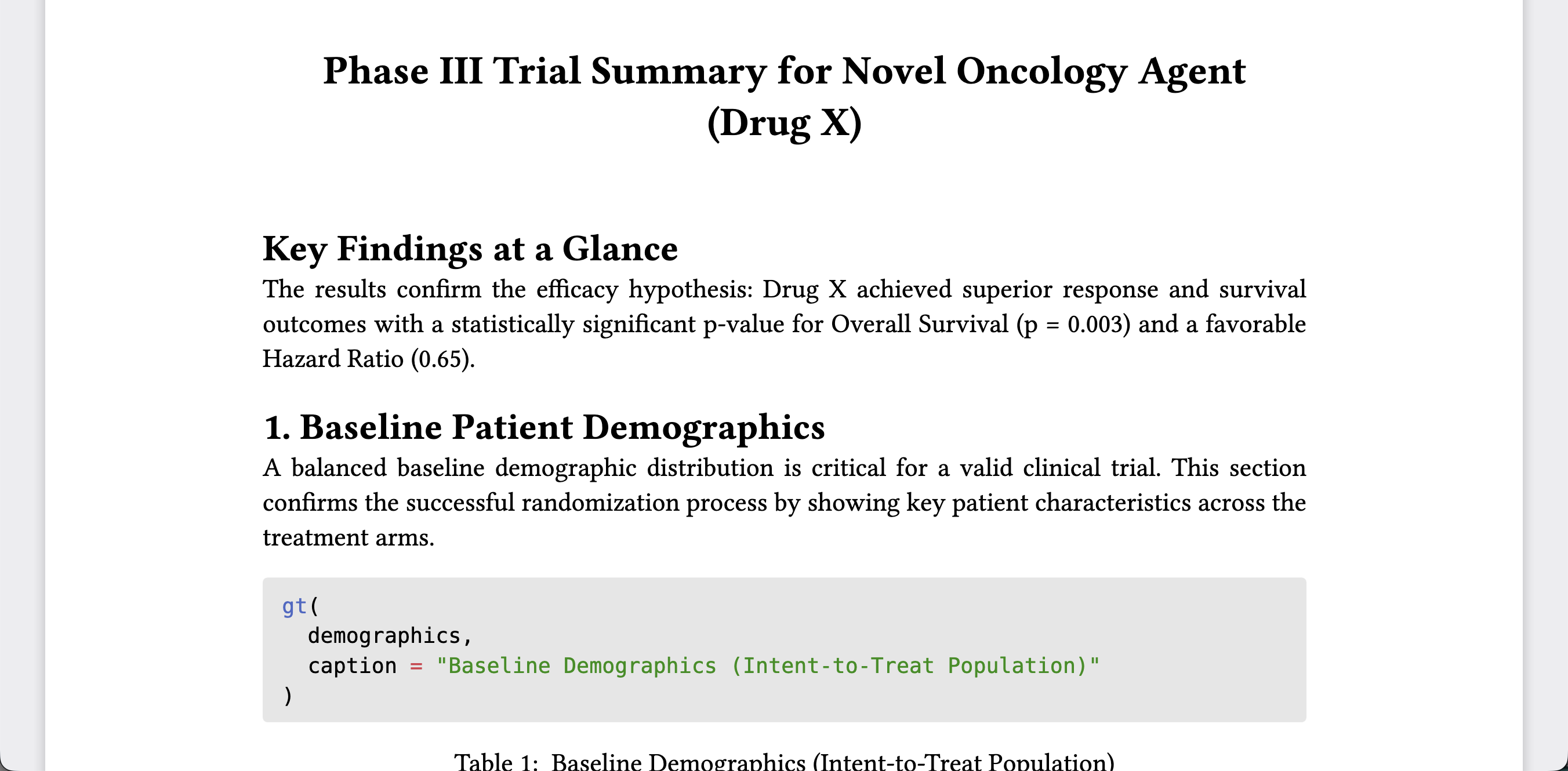
format: typst
---

Presentations with reveal.js

  • Anatomy of a Quarto document

  • Authoring Quarto

  • Changing formats

  • Presentations with reveal.js

  • PDFs with Typst

  • Dashboards

reveal.js

reveal.js presentations allow you to create stunning presentations on the web.

  • Present code and LaTeX equations
  • Include computations in slide output
  • Add image, video, and iFrame backgrounds
  • Add fancy transitions and animations
  • Activate scroll view

…and much more

Structure

---
title: "Habits"
author: "John Doe"
format: html
---

## Getting up

- Turn off alarm
- Get out of bed

## Going to sleep

- Get in bed
- Count sheep

Structure

---
title: "Habits"
author: "John Doe"
format: revealjs
---

## Getting up

- Turn off alarm
- Get out of bed

## Going to sleep

- Get in bed
- Count sheep

Structure

---
title: "Habits"
author: "John Doe"
format: revealjs
---

# In the morning

## Getting up

- Turn off alarm
- Get out of bed

## Breakfast

- Eat eggs
- Drink coffee

# In the evening

## Dinner

- Eat spaghetti
- Drink wine

## Going to sleep

- Get in bed
- Count sheep

Structure

---
title: "Habits"
author: "John Doe"
format: revealjs
---

- Turn off alarm
- Get out of bed

---

- Get in bed
- Count sheep

Editing slides

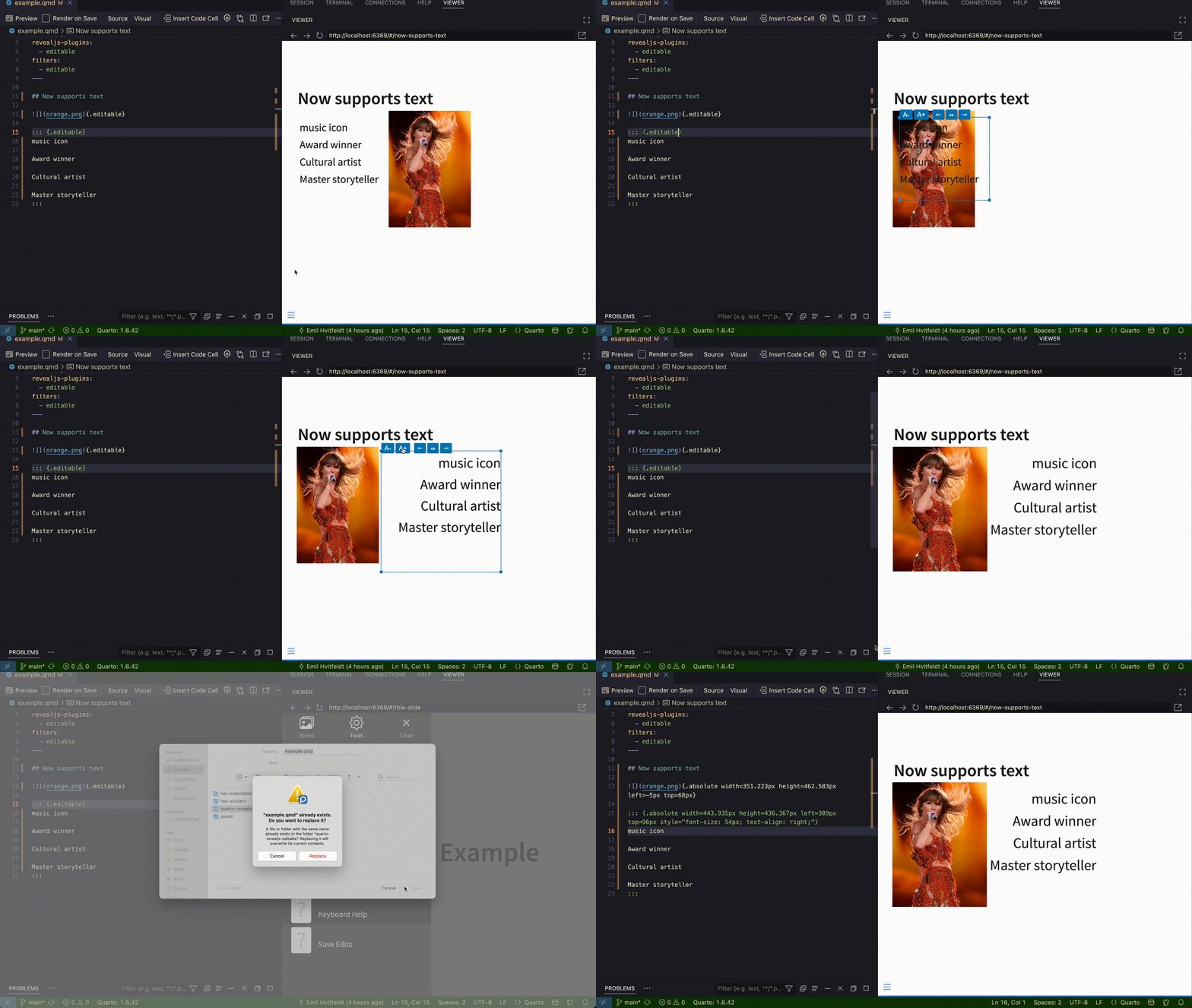
The quarto-revealjs-editable extension allows for the repositioning and resizing of images and text divs directly in previewed slides.
Custom Revealjs formats


Insee

Coeos

Clean

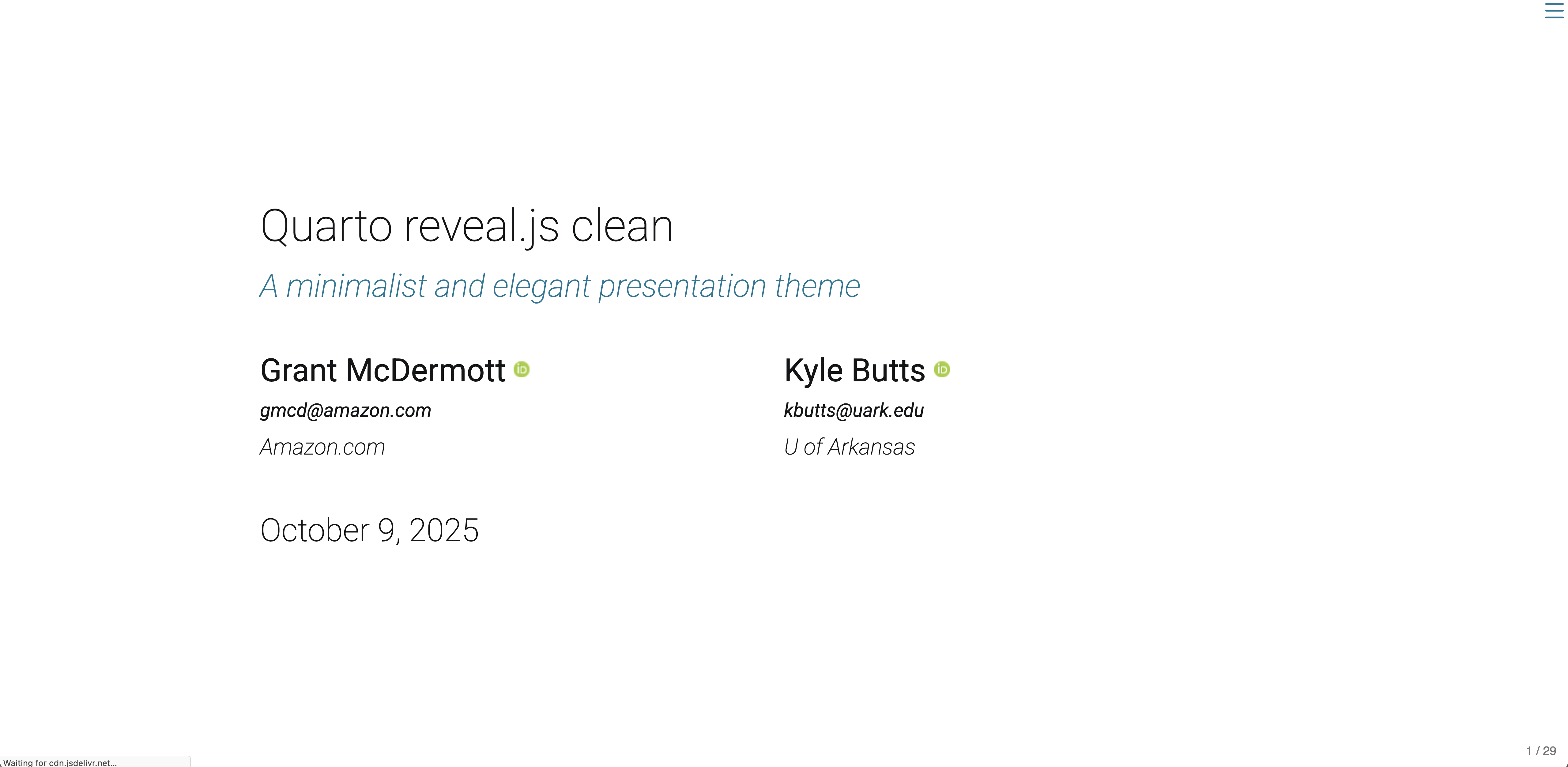
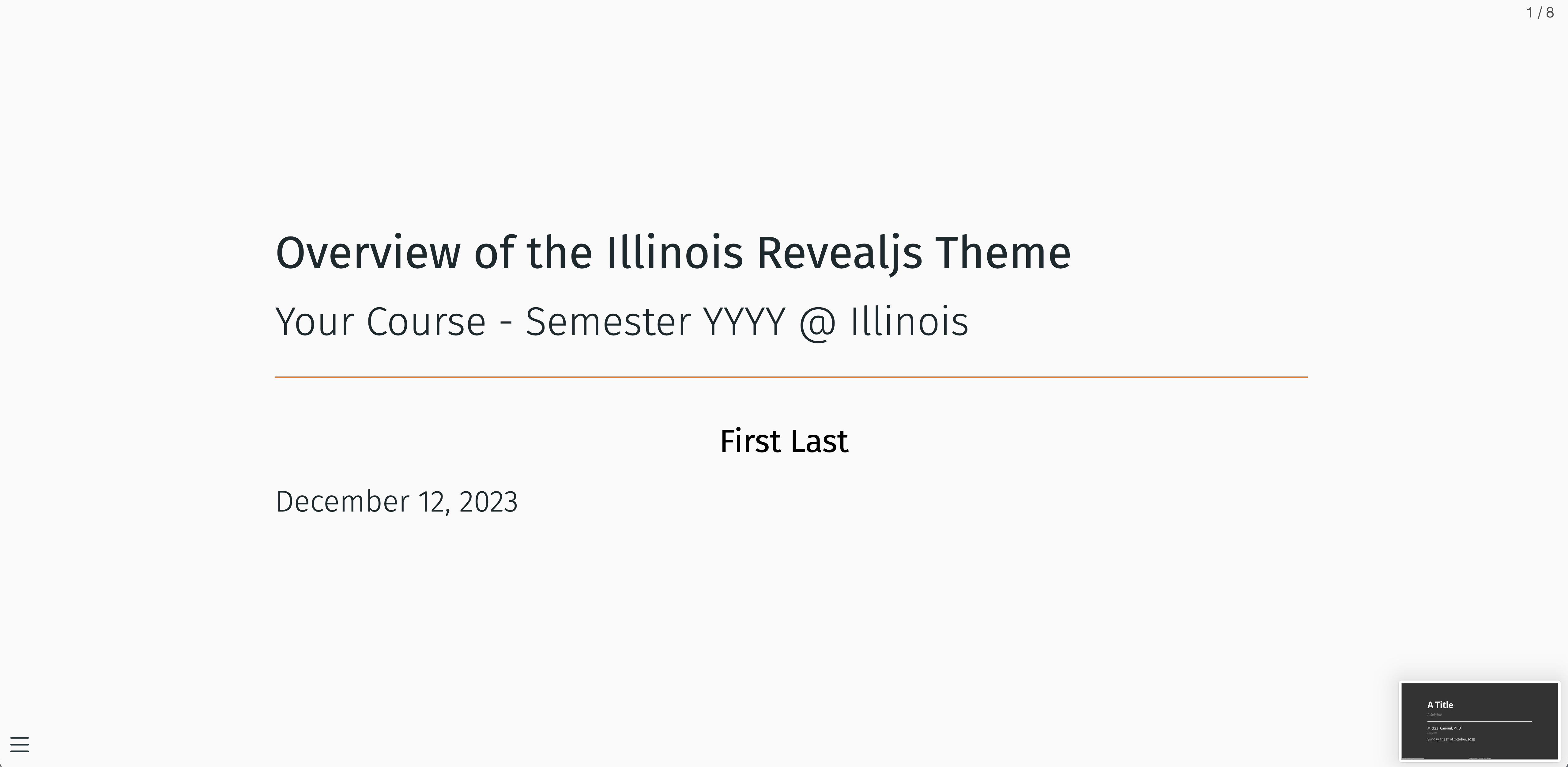
Illinois

PDFs with Typst

  • Anatomy of a Quarto document

  • Authoring Quarto

  • Changing formats

  • Presentations with reveal.js

  • PDFs with Typst

  • Dashboards

Typst

Page layout

Control the size of the page (papersize), the page margins (margin), and the number of columns used for page content (columns):
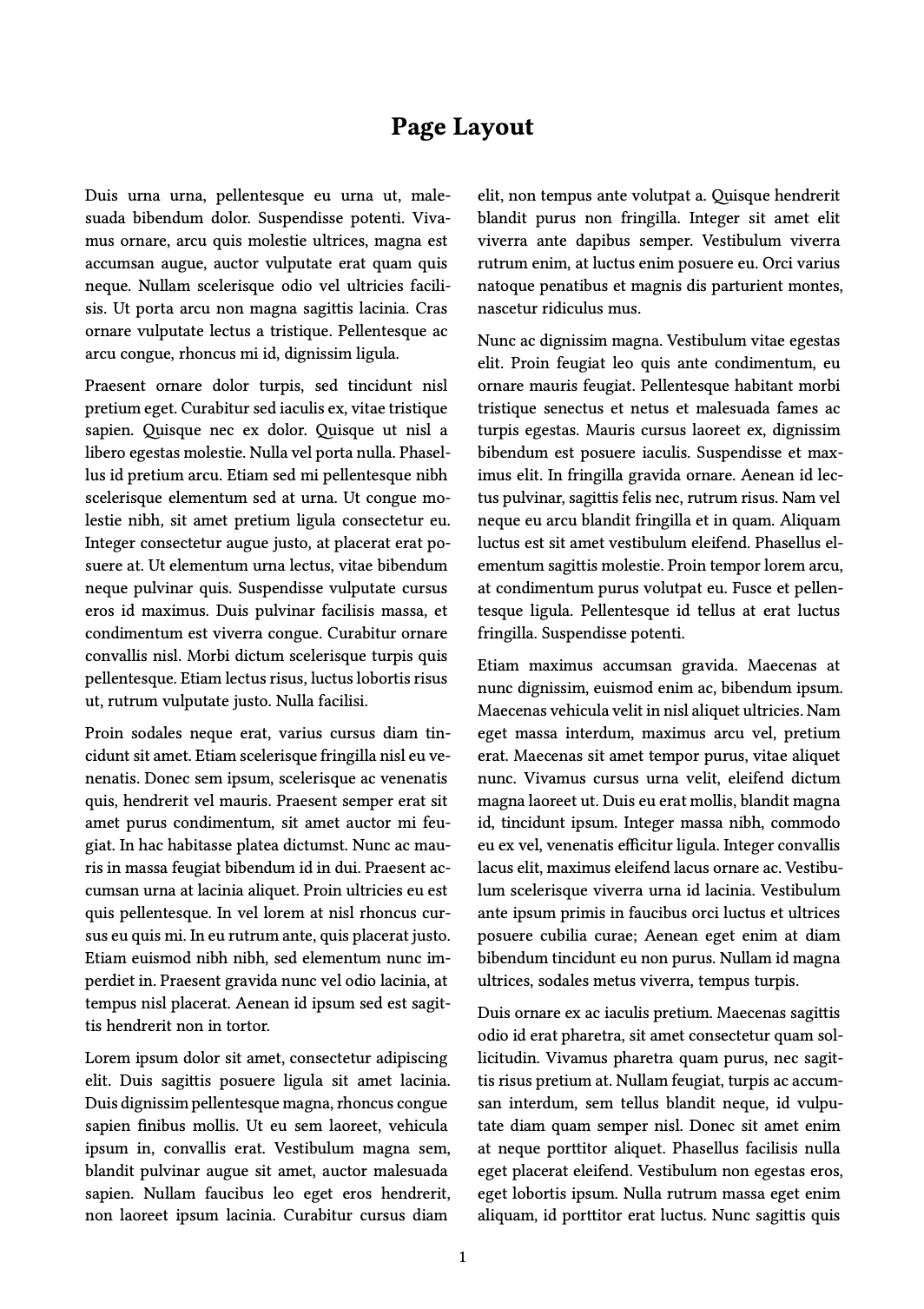
---
title: Page Layout
format:
  typst:
    papersize: a5
    margin:
      x: 1cm
      y: 1cm
    columns: 2
---

Screenshot of one page of PDF document. The document shows a two columns of text. Compared to the previous screenshot, the page is narrower and longer, and the margins are smaller.

Typst blocks

Add a .block class to change appearance of blocks:

::: {.block fill="luma(230)" inset="8pt" radius="4pt"}

This is a block with gray background and slightly rounded corners.

:::

Custom Typst formats

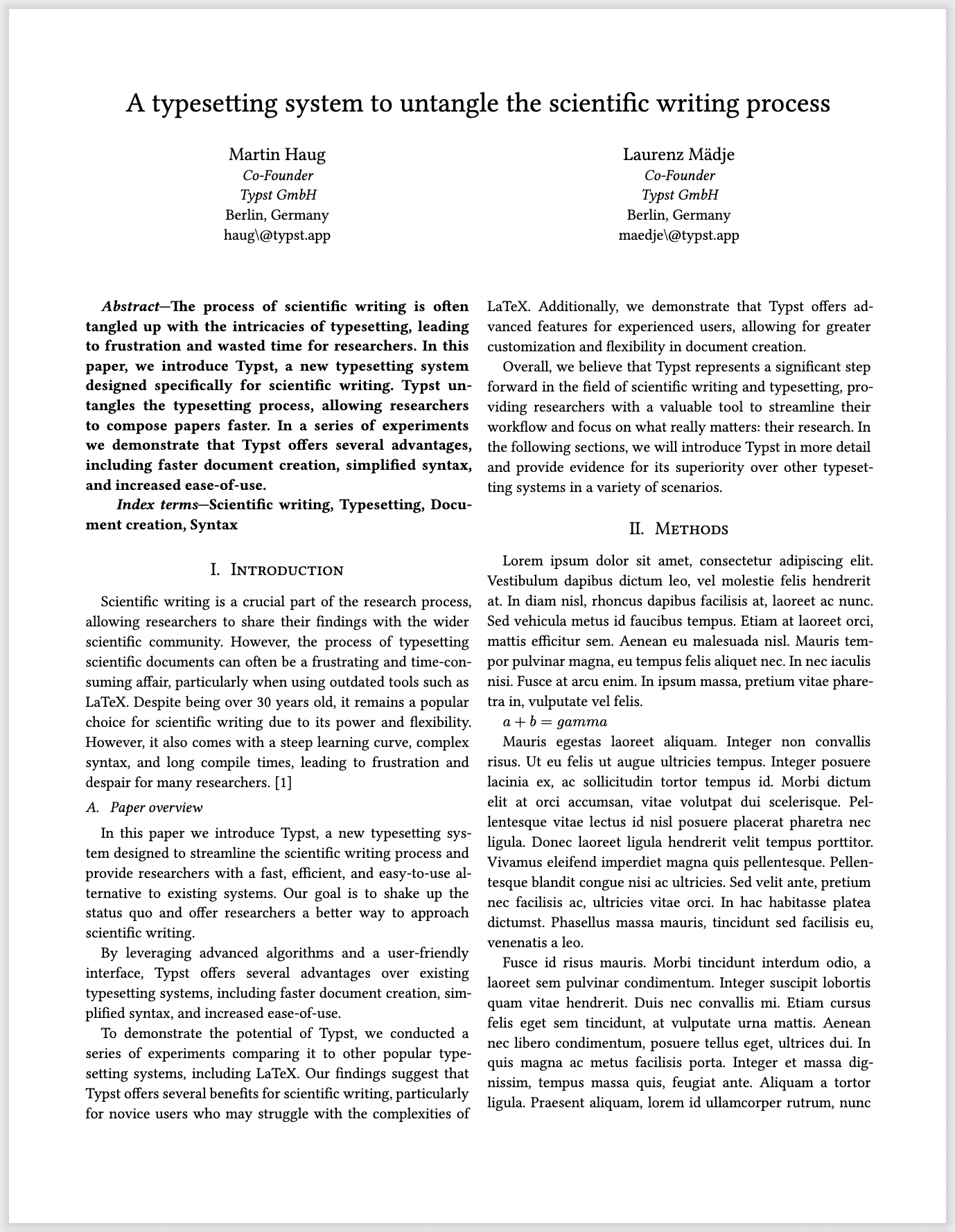
Screenshot of a page showing a article styled according IEEE standards. The title is centered with authors below in two columns.

IEEE

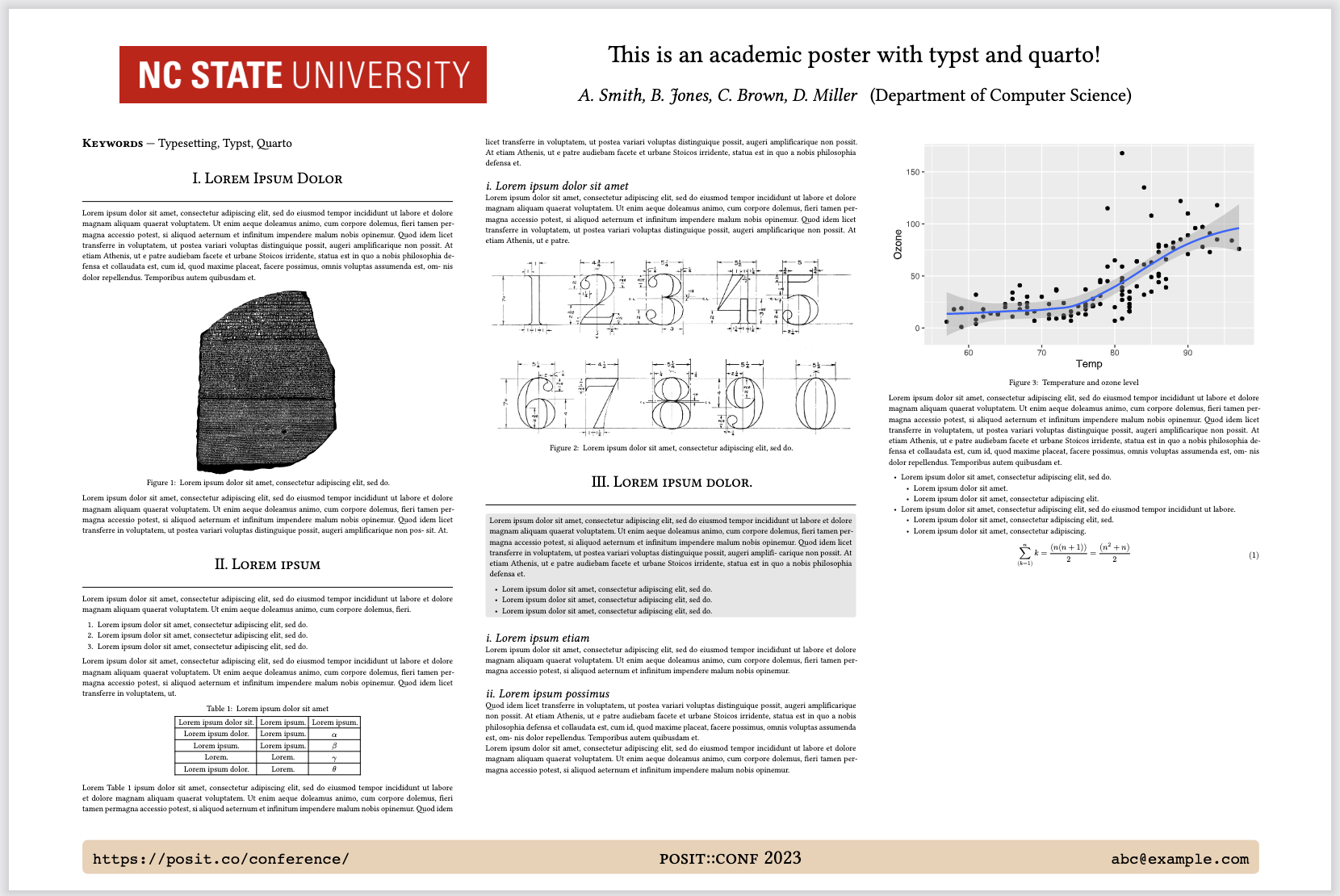
Screenshot of a poster in landscape orientiation. The poster includes a logo in the top right, a title in the top left, and content arranged in three columns.

Poster

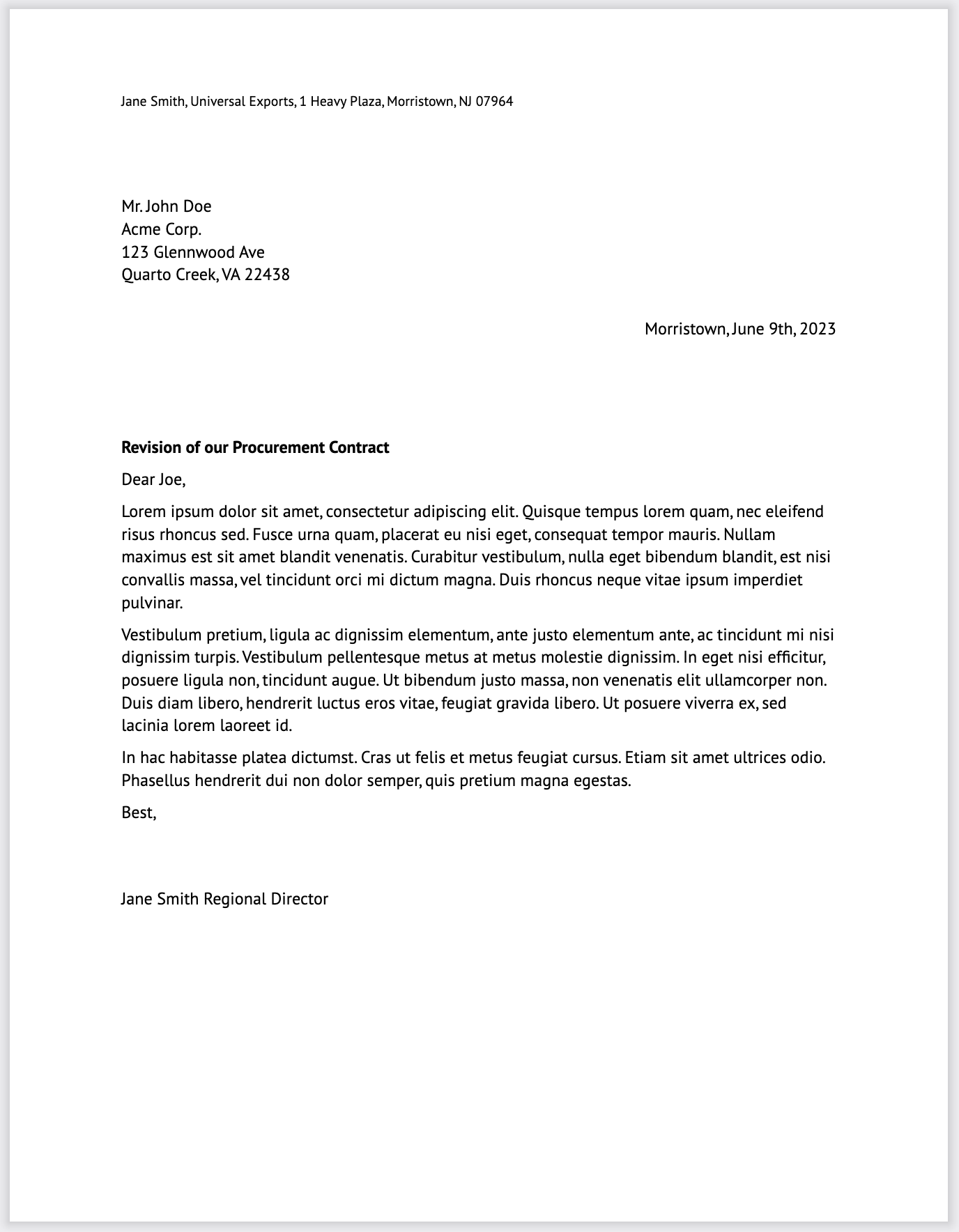
Screenshot of a page showing a letter. A sender address is across the top of the page, followed by a recipient address left justified. The body of the letter includes a subject line in bold.

Letter

Screenshot of a page showing a department newsletter. The page is split vertically with a white column on the left and a red one on the right. An image spans across the column with the text "Award Winning Science" oriented to run vertically down its right side.

Dept News

Your turn

  • Add an important callout box to “Key Findings at a Glance”:
::: {.callout-important}
_text here_
:::
  • Change the format to revealjs. Preview the document.
  • Change the format to typst. Preview the document.

Note

Removing code-fold, code-summary, and embed-resources is not required because these are html only features. However, I’d recommend removing them to keep your document tidy.

Dashboards

  • Anatomy of a Quarto document

  • Authoring Quarto

  • Changing formats

  • Presentations with reveal.js

  • PDFs with Typst

  • Dashboards

Quarto dashboards

  • An output format for creating dashboards from notebooks
  • Publish groups of visualizations, tables, text together
  • Released in Quarto 1.4

Tip

Run this command in your terminal to see what version of Quarto you are on:

Terminal
quarto --version

Cards

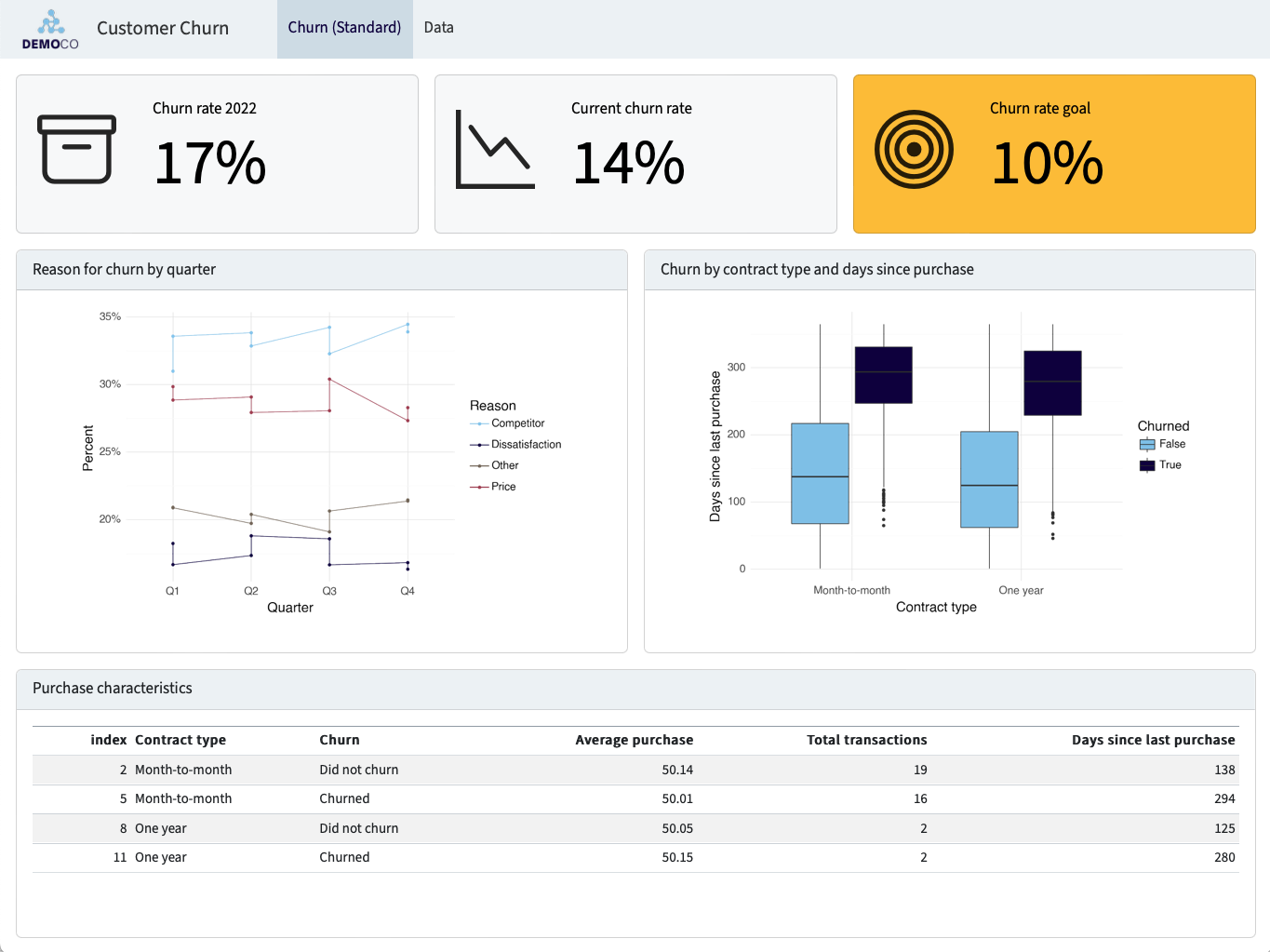
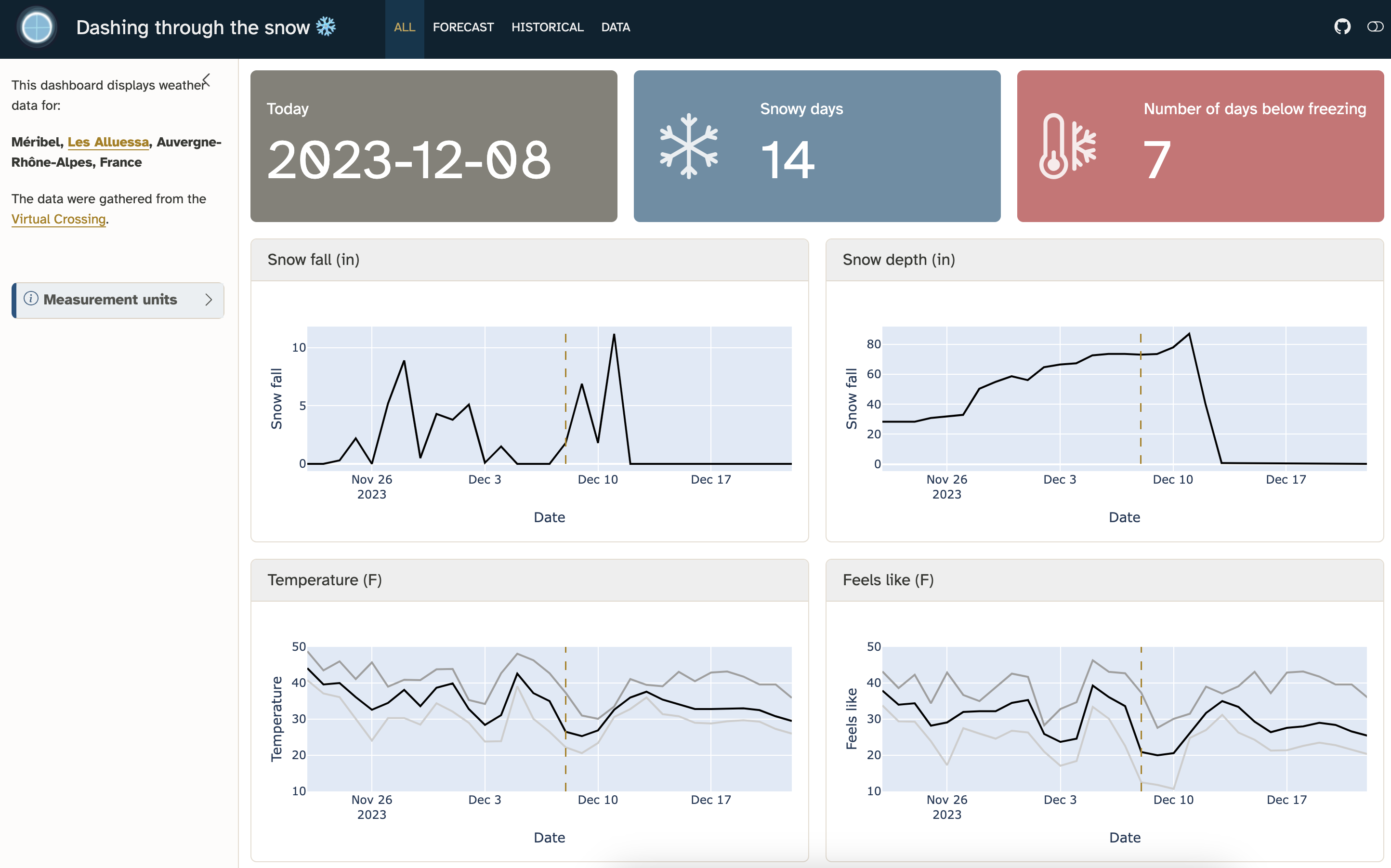
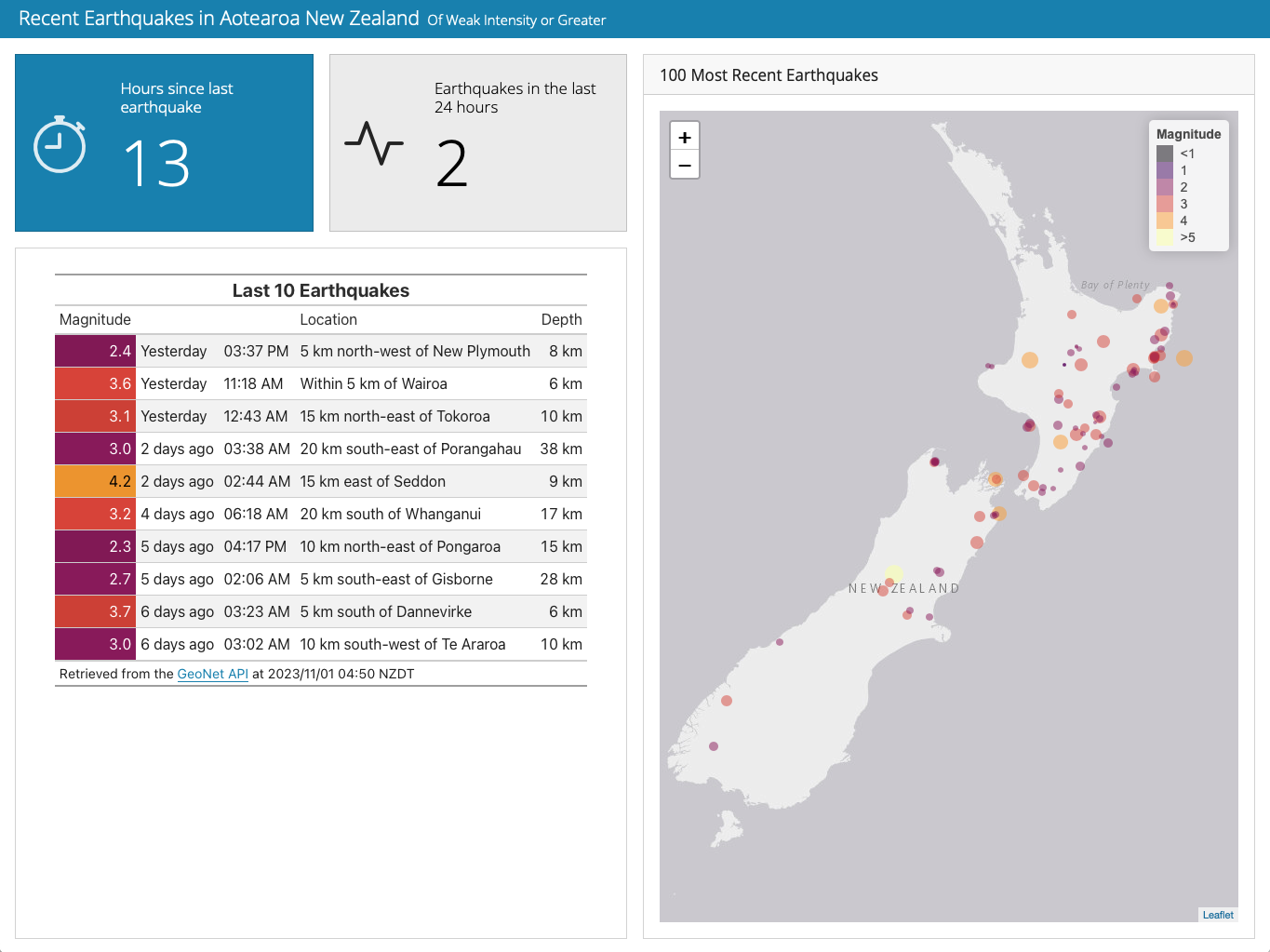
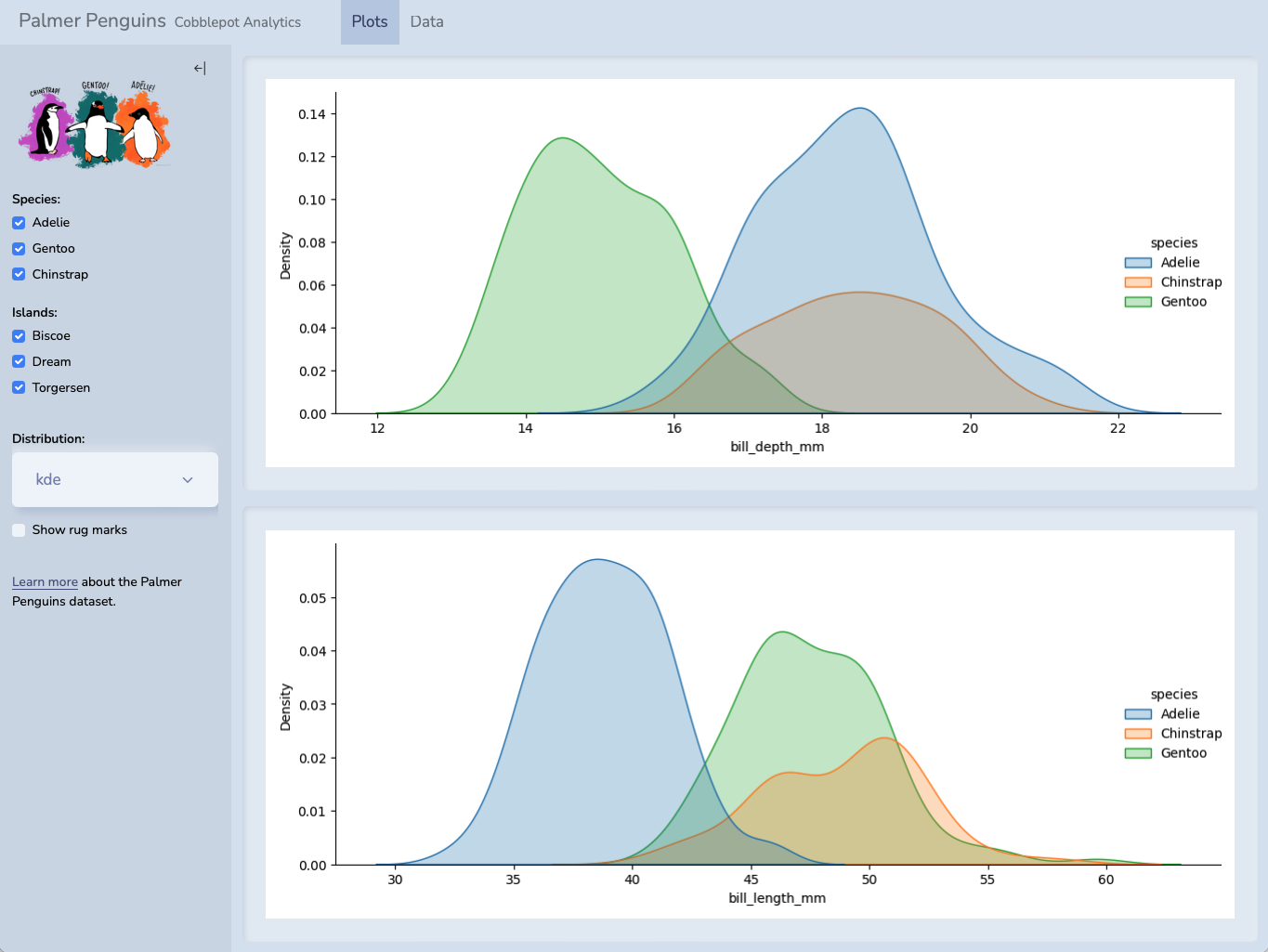
Dashboards are composed of cards.

Rows and columns

Cards are arranged into rows and columns.

Layouts

Pages, tabsets, and sidebars allow for more advanced layouts.

Start from Scratch

Begin with front matter:

dashboard.qmd
---
title: "My first Quarto dashboard"
format: dashboard
---

Start from Scratch

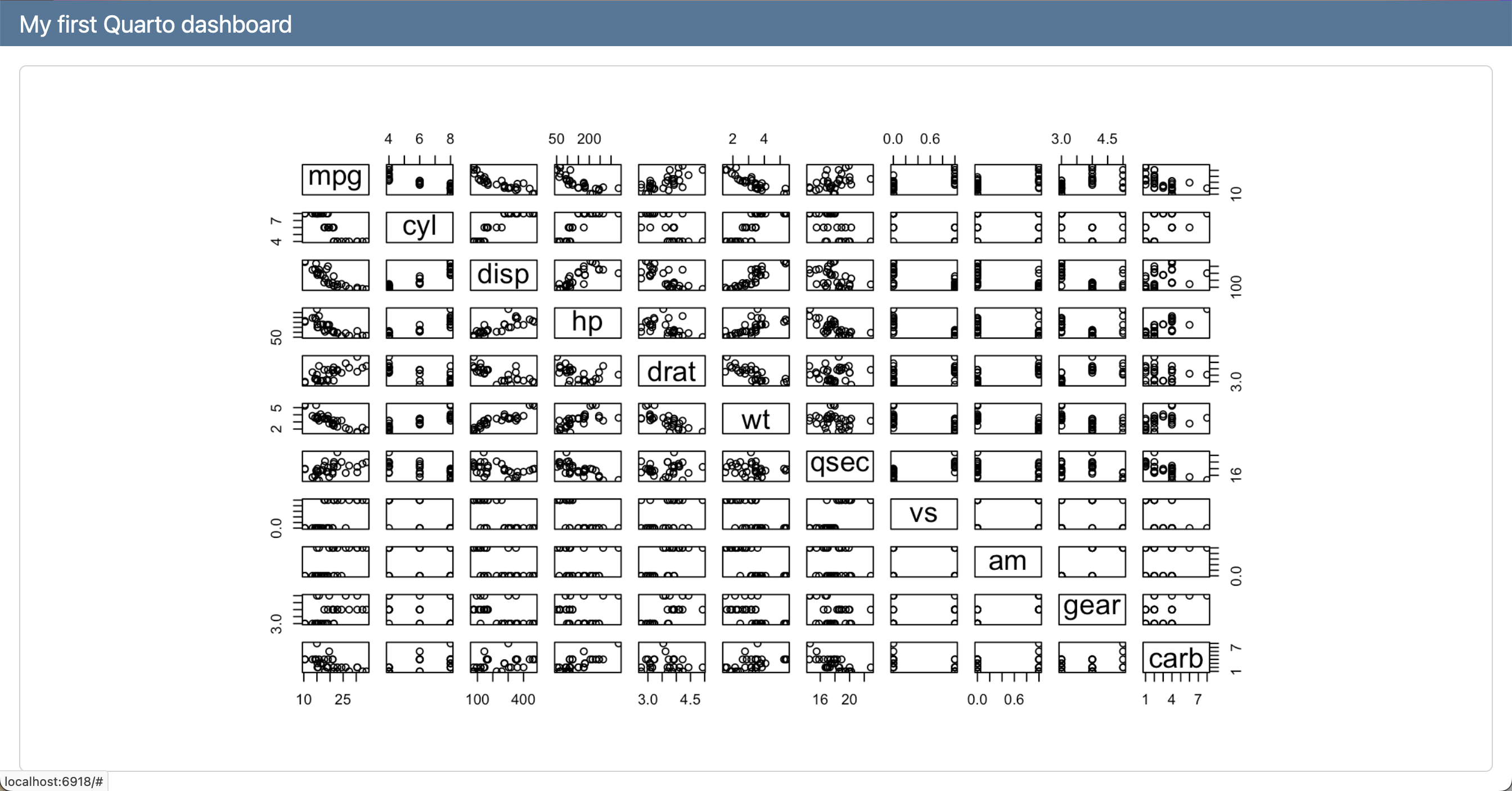
Add a card:
dashboard.qmd
---
title: "My first Quarto dashboard"
format: dashboard
---

```{r}
plot(mtcars)
```

Start from Scratch

Add a card:

dashboard.qmd
---
title: "My first Quarto dashboard"
format: dashboard
---

```{r}
plot(mtcars)
```

Start from scratch

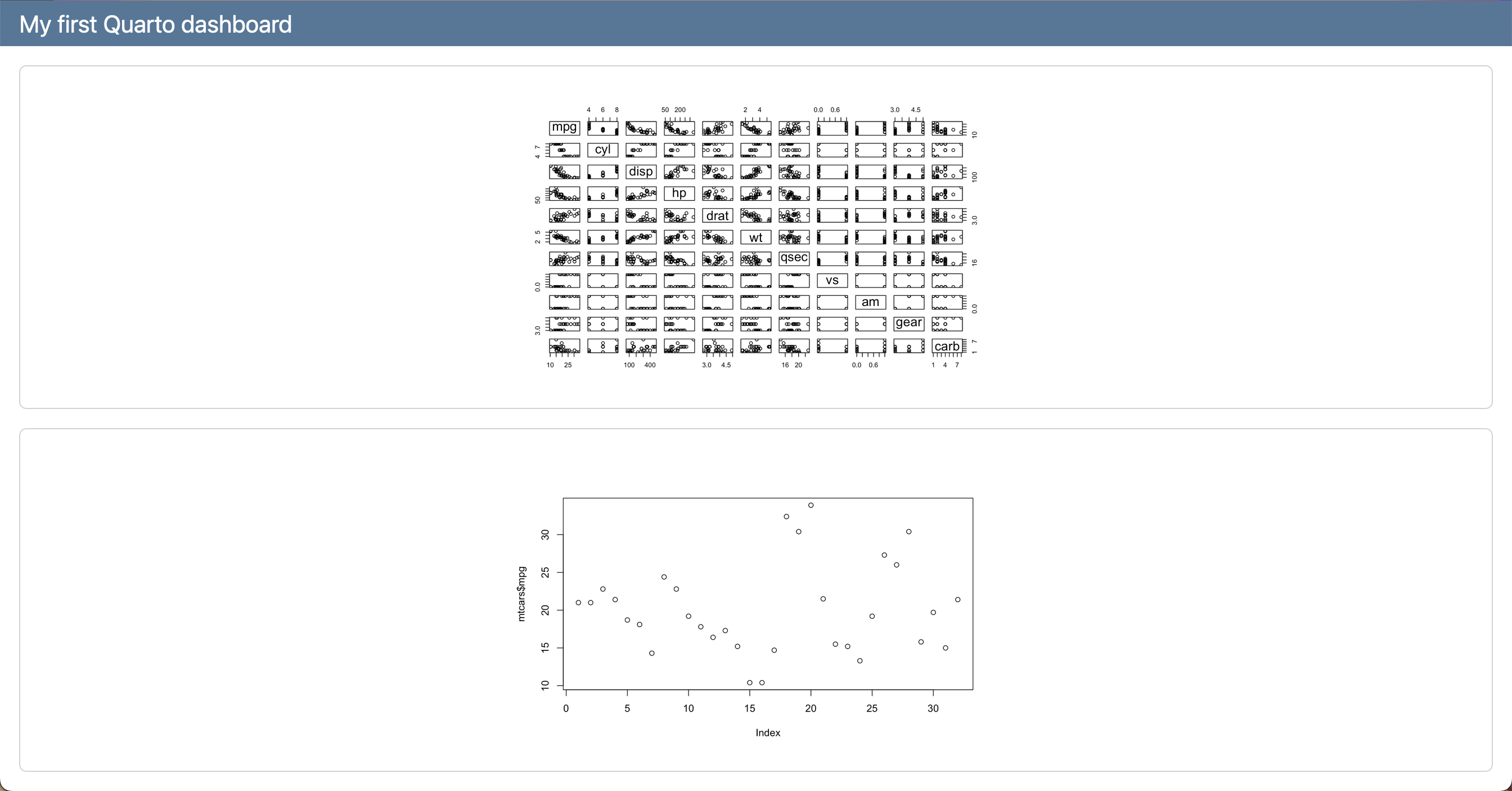
Continue adding cards:
dashboard.qmd
---
title: "My first Quarto dashboard"
format: dashboard
---

```{r}
plot(mtcars)
```

```{r}
plot(mtcars$mpg)
```

Start from Scratch

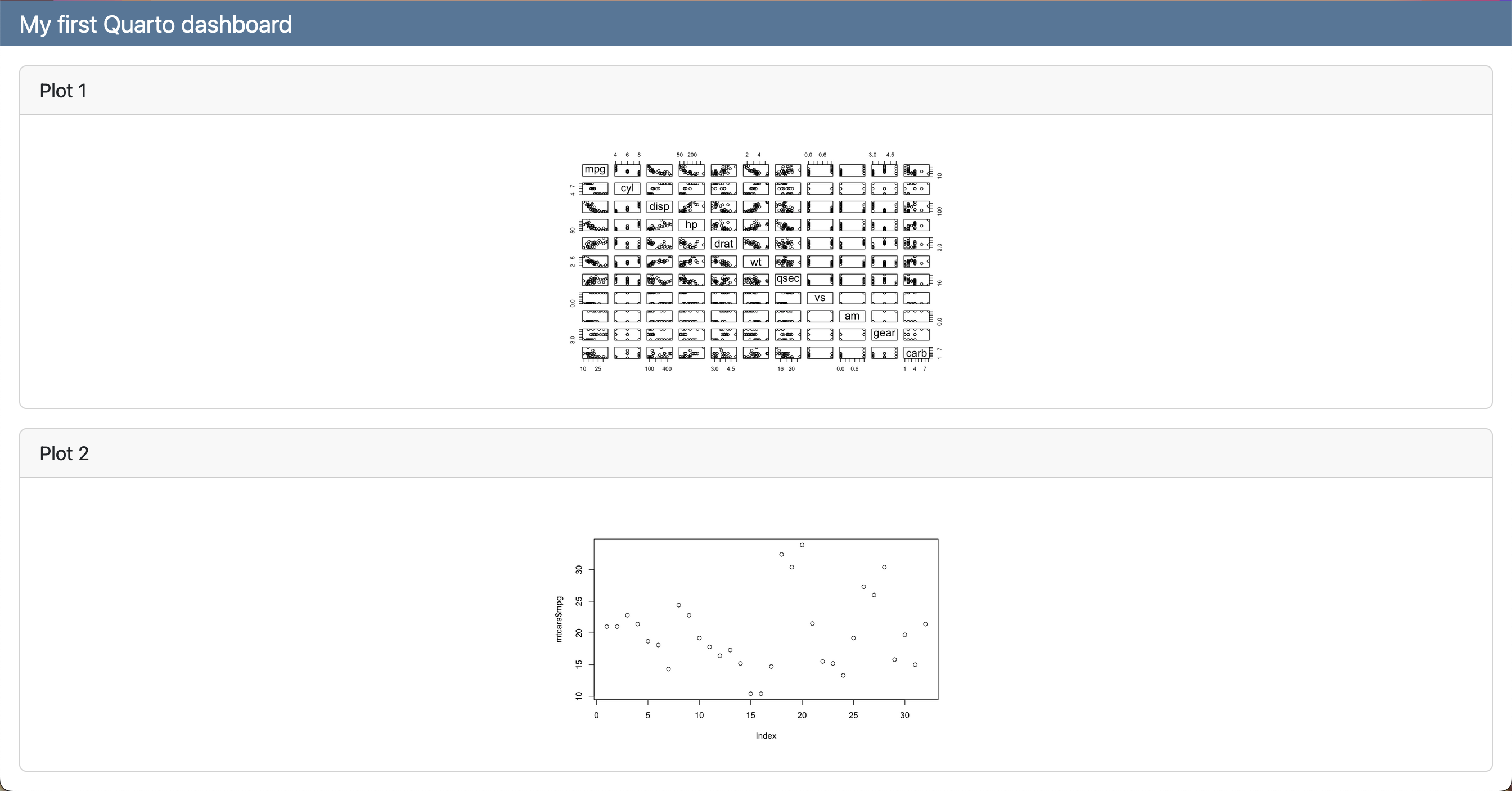
Add a title to your cards:
dashboard.qmd
---
title: "My first Quarto dashboard"
format: dashboard
---

```{r}
#| title: "Plot 1"
plot(mtcars)
```

```{r}
#| title: "Plot 2"
plot(mtcars$mpg)
```

## Rows {auto-animate=true}

By default, cards are laid out in rows:

dashboard.qmd
---
title: "My first Quarto dashboard"
format: dashboard
---

```{r}
#| title: "Plot 1"
plot(mtcars)
```

```{r}
#| title: "Plot 2"
plot(mtcars$mpg)
```

Rows

By default, cards are laid out in rows:

dashboard.qmd
---
title: "My first Quarto dashboard"
format: 
  dashboard:
    orientation: rows
---

```{r}
#| title: "Plot 1"
plot(mtcars)
```

```{r}
#| title: "Plot 2"
plot(mtcars)
```

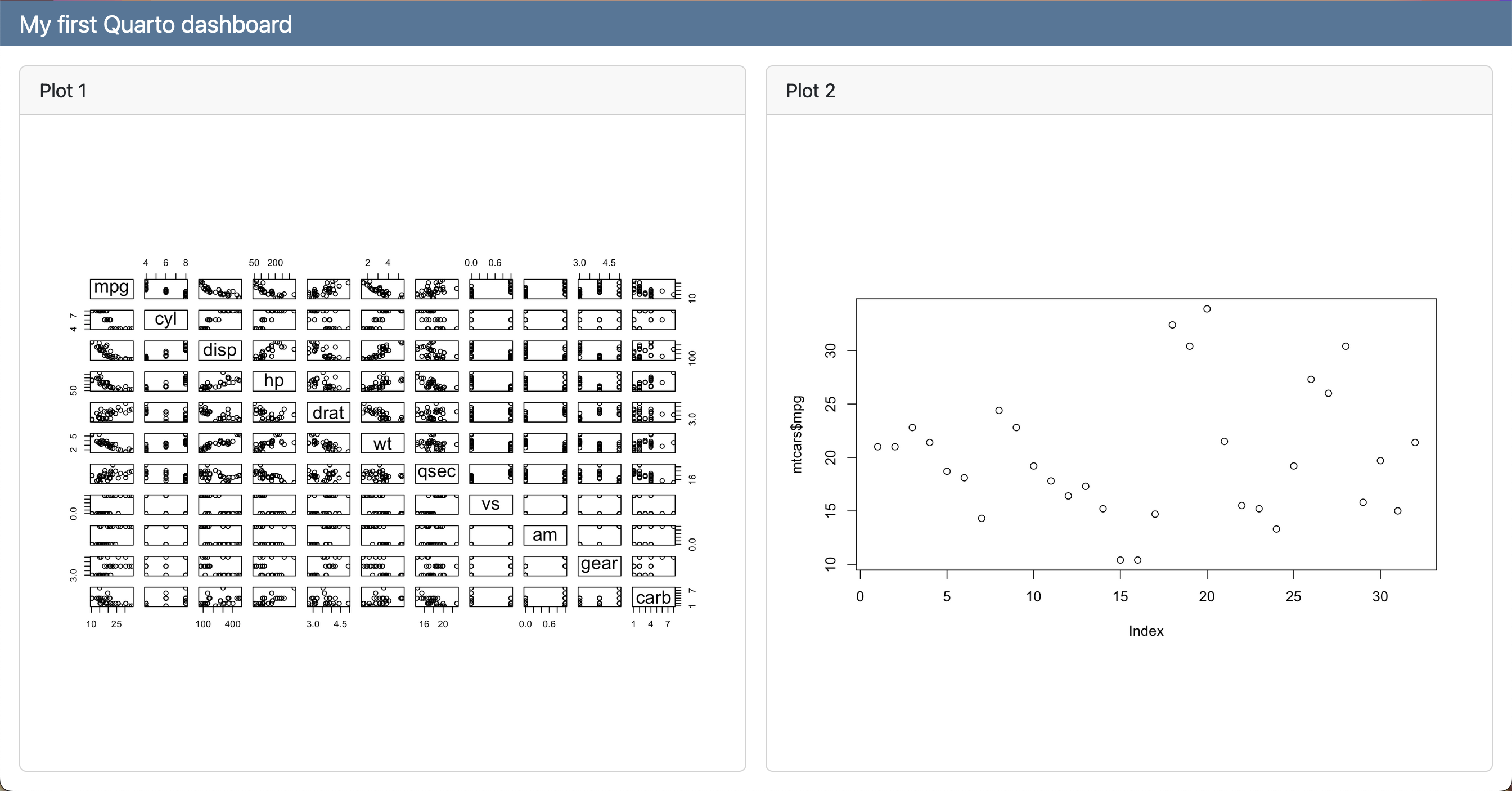
Columns

We can change it to be columns instead:
dashboard.qmd
---
title: "My first Quarto dashboard"
format: 
  dashboard:
    orientation: columns
---

```{r}
#| title: "Plot 1"
plot(mtcars)
```

```{r}
#| title: "Plot 2"
plot(mtcars$mpg)
```

Headings

Alternatively, we can use headings to arrange cards:

dashboard.qmd
---
title: "My first Quarto dashboard"
format: 
  dashboard:
    orientation: rows
---

## Row

```{r}
#| title: "Plot 1"
plot(mtcars)
```

```{r}
#| title: "Plot 2"
plot(mtcars)
```

Headings

Alternatively, we can use headings to arrange cards:

dashboard.qmd
---
title: "My first Quarto dashboard"
format: 
  dashboard:
    orientation: rows
---

## Row

```{r}
#| title: "Plot 1"
plot(mtcars)
```

```{r}
#| title: "Plot 2"
plot(mtcars)
```

Headings

Make another row with content:
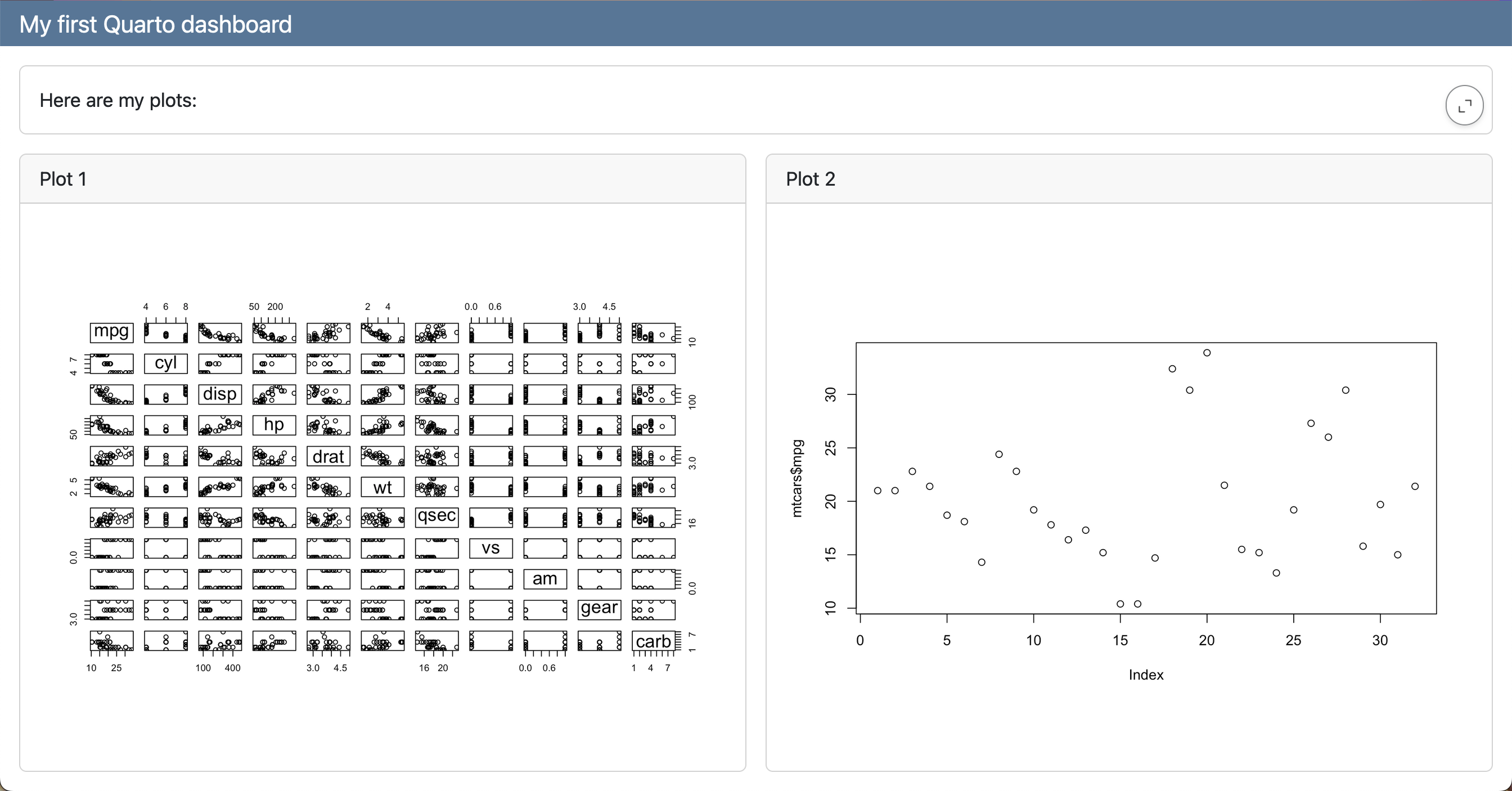
dashboard.qmd
---
title: "My first Quarto dashboard"
format: 
  dashboard:
    orientation: rows
---

## Row

Here is my dashboard:

## Row

```{r}
#| title: "Plot 1"
plot(mtcars)
```

```{r}
#| title: "Plot 2"
plot(mtcars$mpg)
```

Headings

Continue adding content:

dashboard.qmd
---
title: "My first Quarto dashboard"
format: 
  dashboard:
    orientation: rows
---

## Row

Here is my dashboard:

## Row

```{r}
#| title: "Plot 1"
plot(mtcars)
```

```{r}
#| title: "Plot 2"
plot(mtcars$mpg)
```

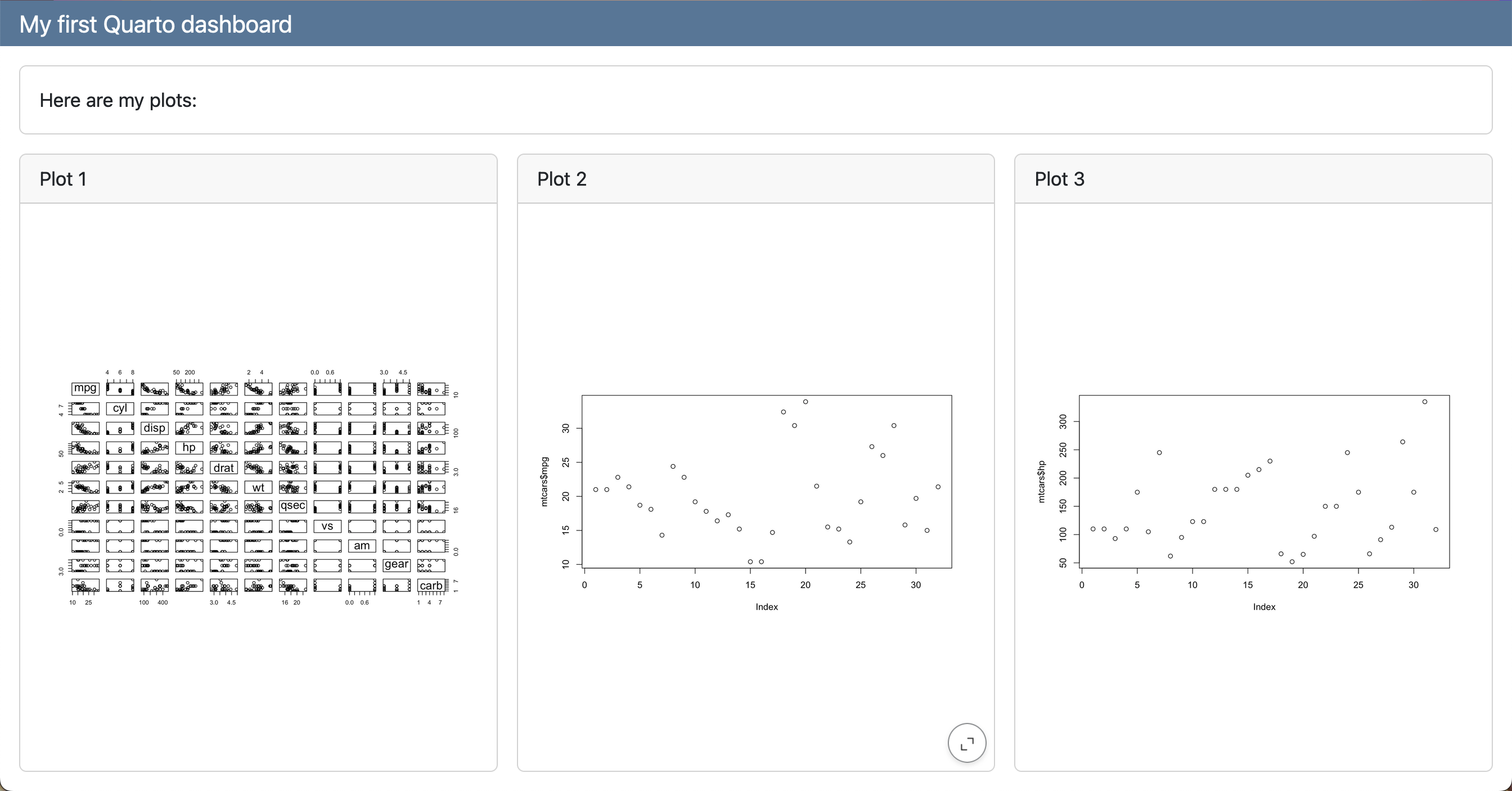
```{r}
#| title: "Plot 3"
plot(mtcars$hp)
```

Headings

We can add columns within our rows:
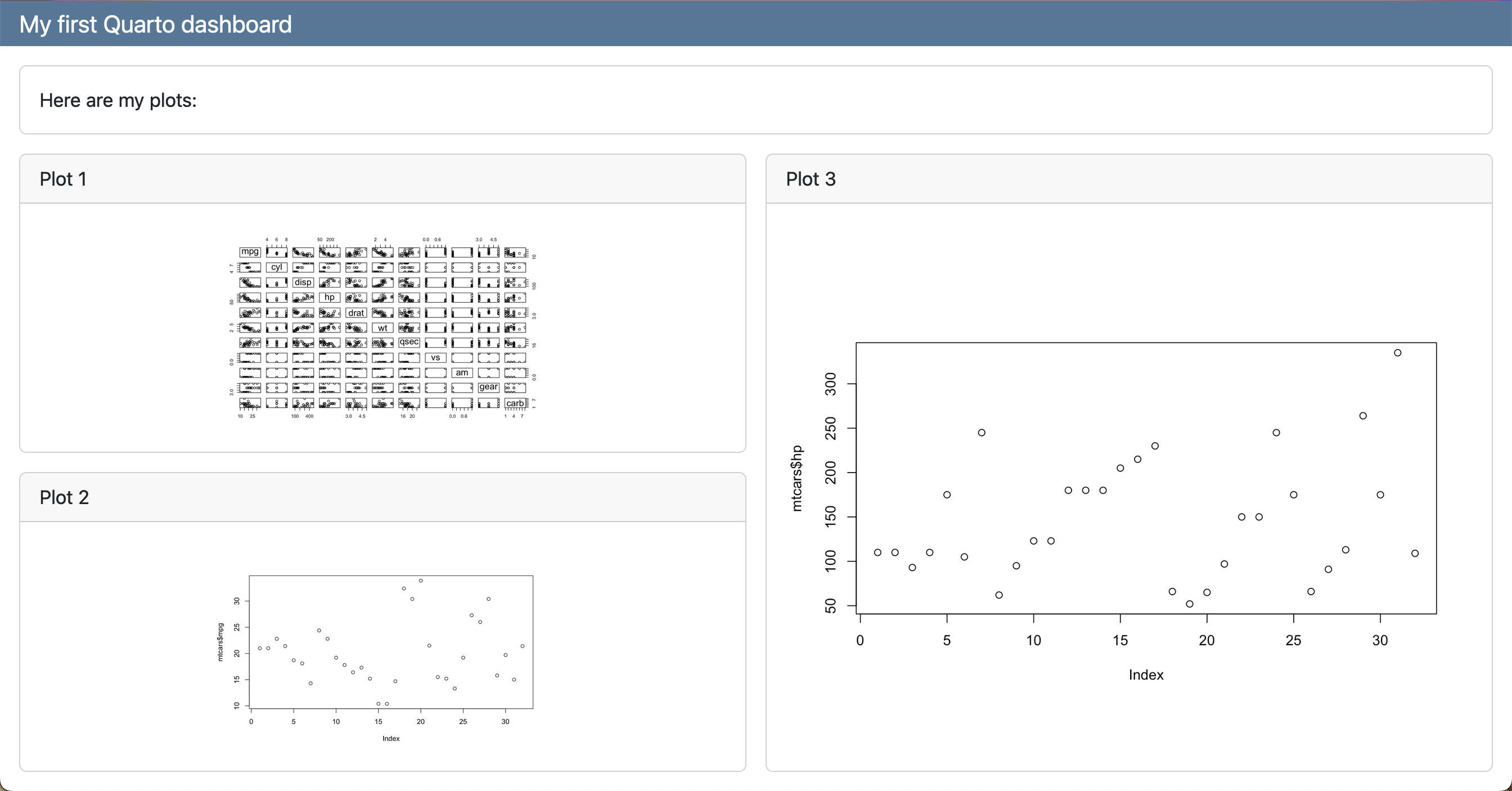
dashboard.qmd
---
title: "My first Quarto dashboard"
format: 
  dashboard:
    orientation: rows
---

## Row

Here is my dashboard:

## Row

### Column

```{r}
#| title: "Plot 1"
plot(mtcars)
```

```{r}
#| title: "Plot 2"
plot(mtcars)
```

### Column

```{r}
#| title: "Plot 3"
plot(mtcars)
```

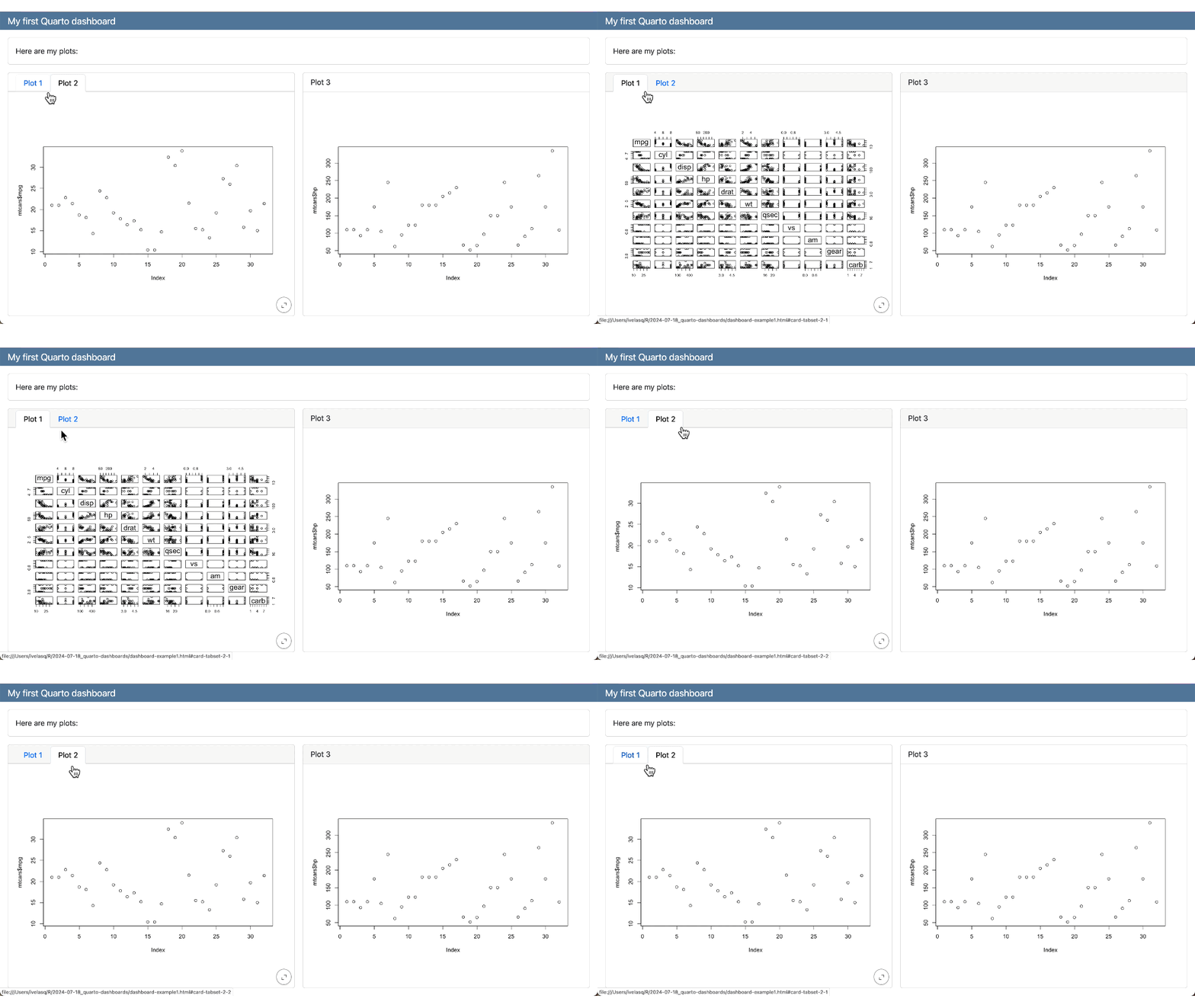
Tabsets

Or use tabsets to put content in different tabs:

dashboard.qmd
---
title: "My first Quarto dashboard"
format: 
  dashboard:
    orientation: rows
---

## Row

Here is my dashboard:

## Row

### Column {.tabset}

```{r}
#| title: "Plot 1"
plot(mtcars)
```

```{r}
#| title: "Plot 2"
plot(mtcars$mpg)
```

### Column

```{r}
#| title: "Plot 3"
plot(mtcars$hp)
```

Tabsets

Pages

Use a Level 1 heading to create new pages:
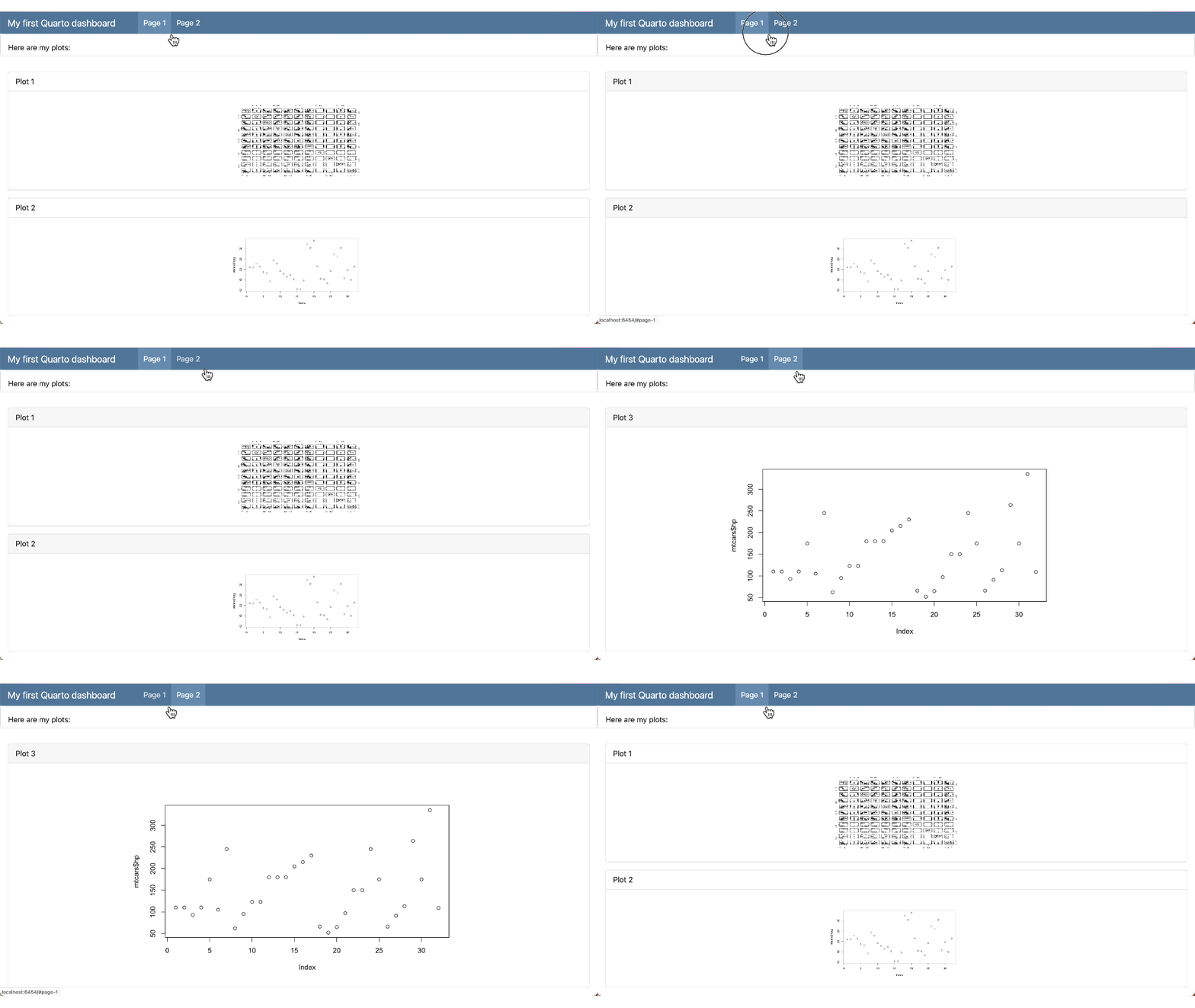
dashboard.qmd
---
title: "My first Quarto dashboard"
format: 
  dashboard:
    orientation: rows
---

## Row

Here is my dashboard:

# Page 1

```{r}
#| title: "Plot 1"
plot(mtcars)
```

```{r}
#| title: "Plot 2"
plot(mtcars$mpg)
```

# Page 2

```{r}
#| title: "Plot 3"
plot(mtcars$hp)
```
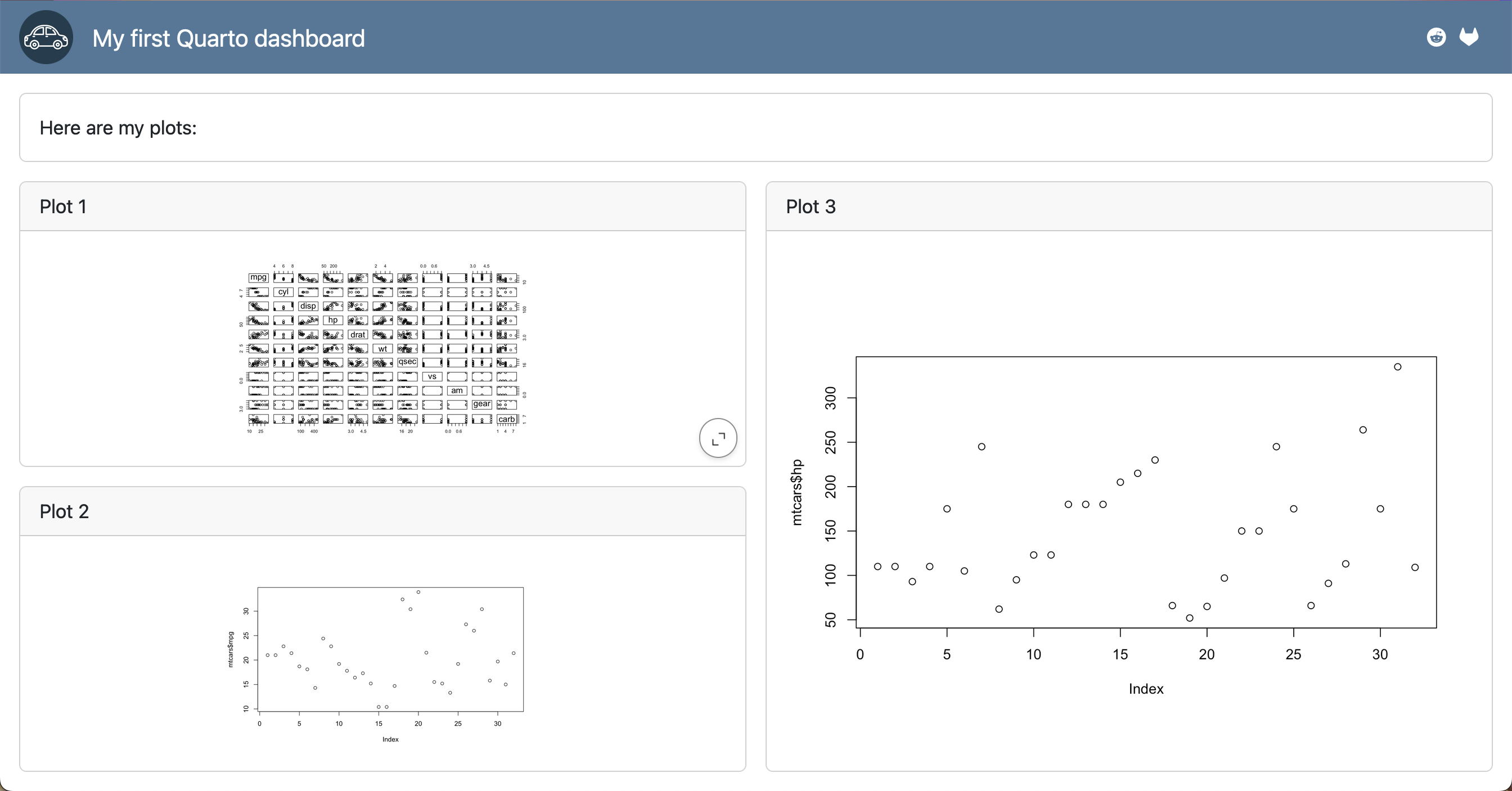
Pages

Use a Level 1 heading to create new pages:

Cards

Cards are the fundamental unit of display within dashboards.

Text

Cards can also have arbitrary markdown:

::: {.card}
This text will be displayed within a card
:::

Enclose the both the cell and the content in a .card div to include content alongside the output of a cell:


::: {.card}
```{r}
plot(mtcars)
```

Above is my plot.
:::

Text

Content that is included at the top of a dashboard is considered leading content, and will be included as is with no card styling:

dashboard.qmd
---
title: "My first Quarto dashboard"
format: dashboard
---

## Row

Here is my dashboard:

## Row

```{r}
#| title: "Plot 1"
plot(mtcars)
```

```{r}
#| title: "Plot 2"
plot(mtcars$mpg)
```

Plots

Both interactive JavaScript-based plots and standard raster based plots are supported.

dashboard.qmd
---
title: "My first Quarto dashboard"
format: dashboard
---

## Row

```{r}
#| title: "Plot 1"
plot(mtcars)
```

```{r}
#| title: "Plot 2"
plot(mtcars$mpg)
```

Plots

Size plots in static dashboards using code chunk options:

dashboard.qmd
---
title: "My first Quarto dashboard"
format: dashboard
---

## Row

```{r}
#| title: "Plot 1"
#| fig-width: 5
#| fig-height: 4
plot(mtcars)
```

```{r}
#| title: "Plot 2"
plot(mtcars$mpg)
```

Tables

Produce tabular output within cards:
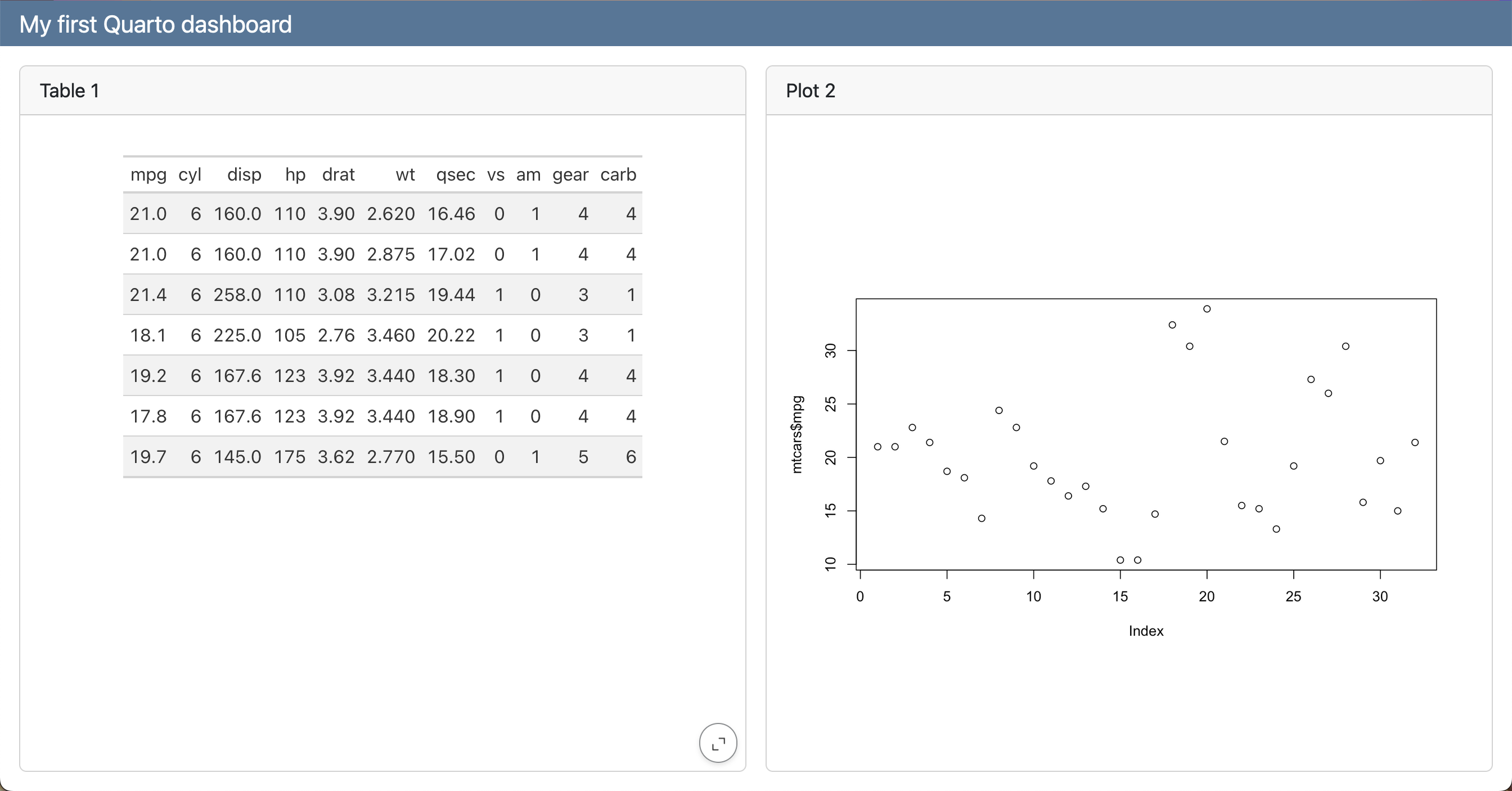
dashboard.qmd
---
title: "My first Quarto dashboard"
format: dashboard
---

## Row

```{r}
#| title: "Table 1"
mtcars |> tibble::as_tibble() |> dplyr::filter(cyl == 6)  |> gt::gt()
```

```{r}
#| title: "Plot 2"
plot(mtcars$mpg)
```

Tables

Produce tabular output within cards:

dashboard.qmd
---
title: "My first Quarto dashboard"
format: dashboard
---

## Row

```{r}
#| title: "Table 1"
mtcars |> tibble::as_tibble() |> dplyr::filter(cyl == 6)  |> gt::gt()
```

```{r}
#| title: "Plot 2"
plot(mtcars$mpg)
```

Value Boxes

Value boxes display simple values within a dashboard:

dashboard.qmd
---
title: "My first Quarto dashboard"
format: dashboard
---

## Row

::: {.valuebox color="#F52A32"}
Last updated:

`{{r}} Sys.Date()`
:::

```{r}
#| content: valuebox
#| title: "Spam per day"
n <- mtcars |> tibble::as_tibble() |> dplyr::count() |> dplyr::pull(n)

list(
  icon = "trash",
  color = "#F52A32",
  value = n
)
```

## Row

```{r}
#| title: "Plot 2"
plot(mtcars$mpg)
```
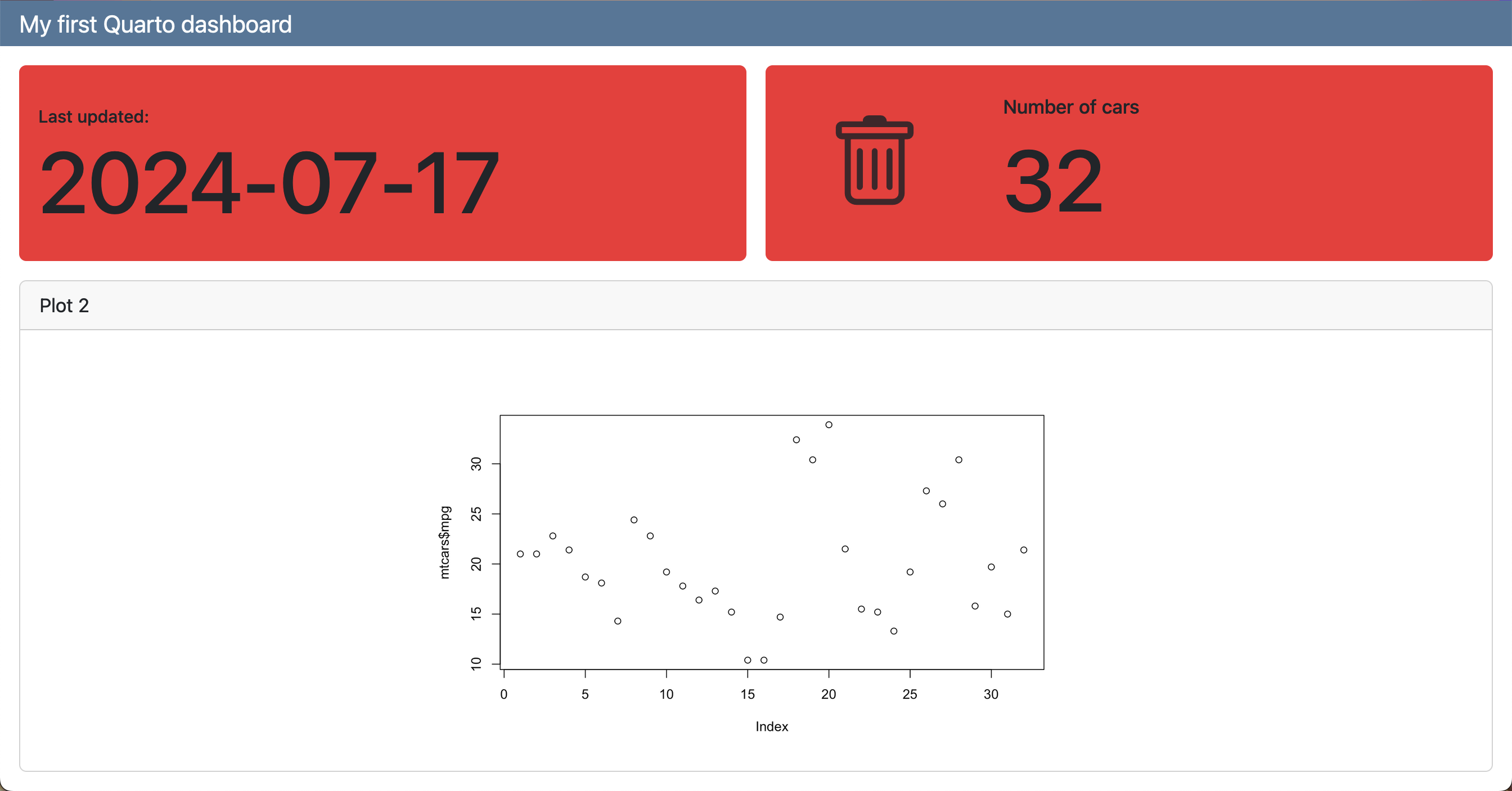
Value Boxes

dashboard.qmd
---
title: "My first Quarto dashboard"
format: dashboard
---

## Row

::: {.valuebox color="#F52A32"}
Last updated:

`{r} Sys.Date()`
:::

```{r}
#| content: valuebox
#| title: "Spam per day"
n <- mtcars |> tibble::as_tibble() |> dplyr::count() |> dplyr::pull(n)

list(
  icon = "trash",
  color = "#F52A32",
  value = n
)
```

## Row

```{r}
#| title: "Plot 2"
plot(mtcars$mpg)
```
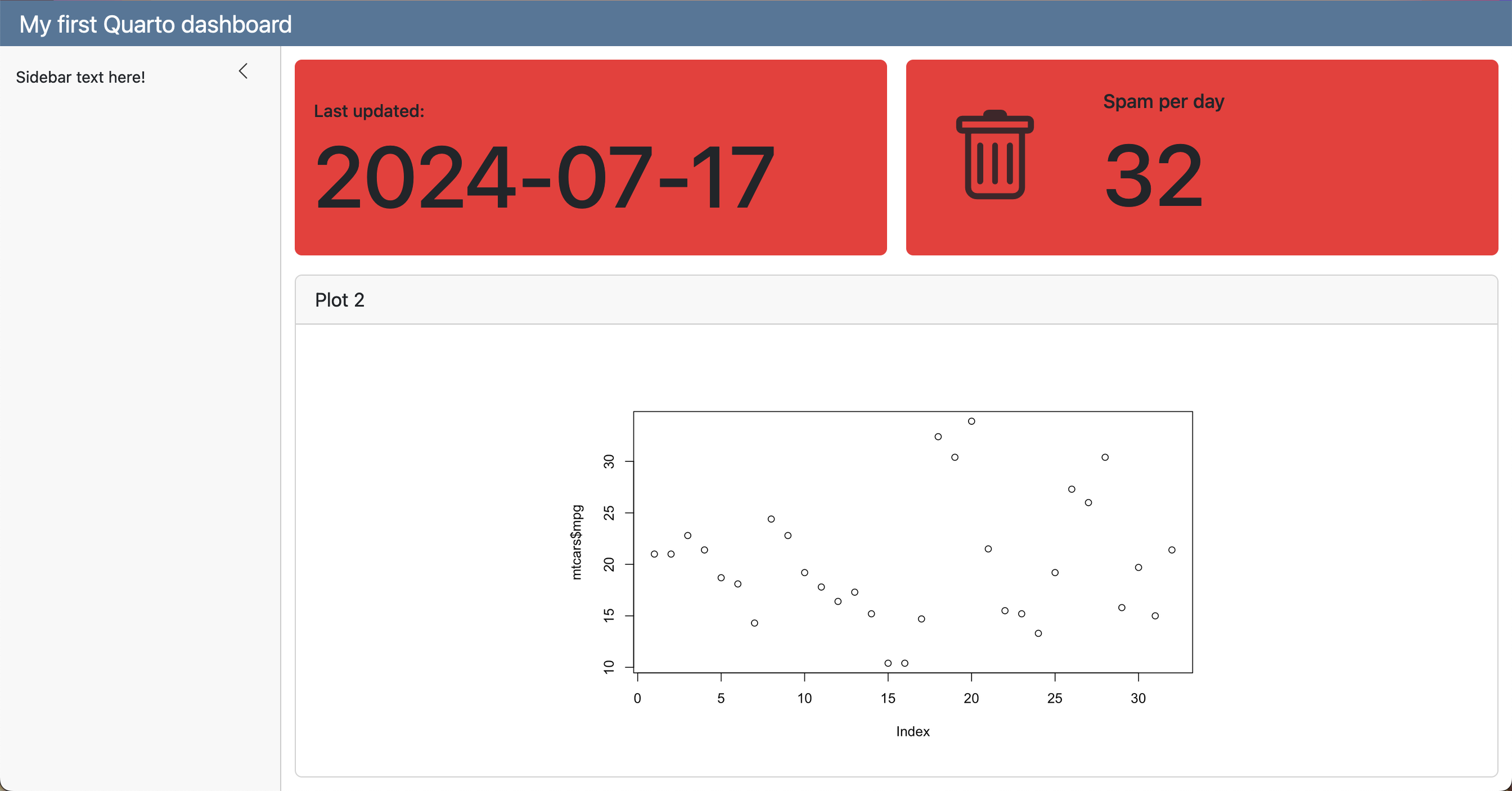
Value Boxes

Input Layout

There are several ways to layout inputs within interactive dashboards:

  • Sidebars provide a collapsible vertical panel for inputs.

  • Toolbars provide a horizontal panel for inputs.

  • Card Inputs provide a panel for card-specific inputs.

Input Layout

There are several ways to layout inputs within interactive dashboards:

  • Sidebars provide a collapsible vertical panel for inputs.

  • Toolbars provide a horizontal panel for inputs.

  • Card Inputs provide a panel for card-specific inputs.

Shiny

  • The Shiny package provides an easy way to build web applications with R.
  • Quarto dashboards can include embedded Shiny components (e.g. a plot with sliders that control its inputs) to add interactivity.

Non-interactive dashboard

dashboard.qmd
---
title: "Non-interactive Quarto dashboard"
format: 
  dashboard:
    orientation: rows
---

## {.sidebar}

## Column

### Row

Here is my dashboard:

### Row

```{r}
#| title: "Plot 2"
plot(mtcars$mpg)
```

Non-interactive dashboard
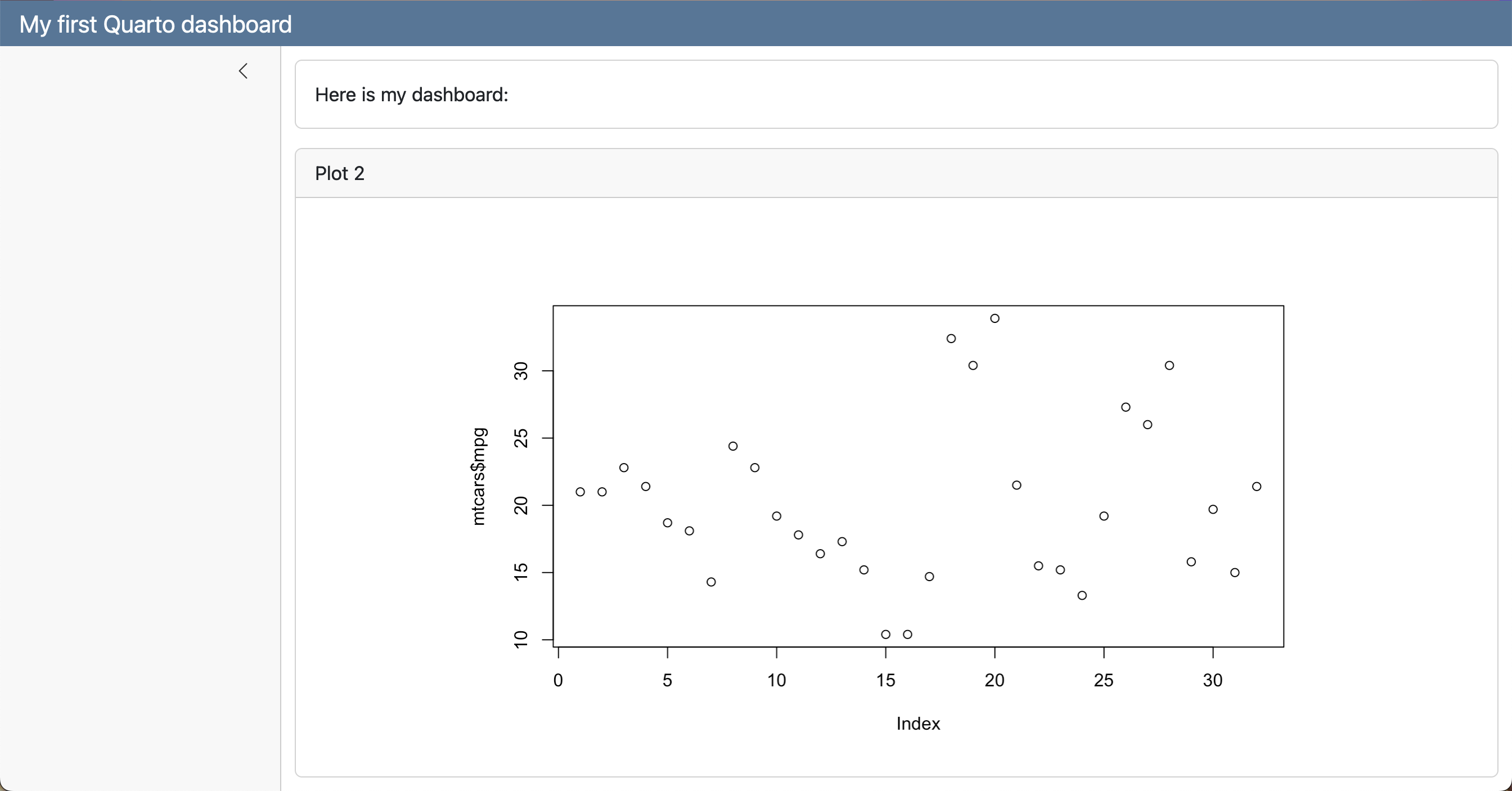
dashboard.qmd
---
title: "Non-interactive Quarto dashboard"
format: 
  dashboard:
    orientation: rows
---

## {.sidebar}

## Column

### Row

Here is my dashboard:

### Row

```{r}
#| title: "Plot 2"
plot(mtcars$mpg)
```

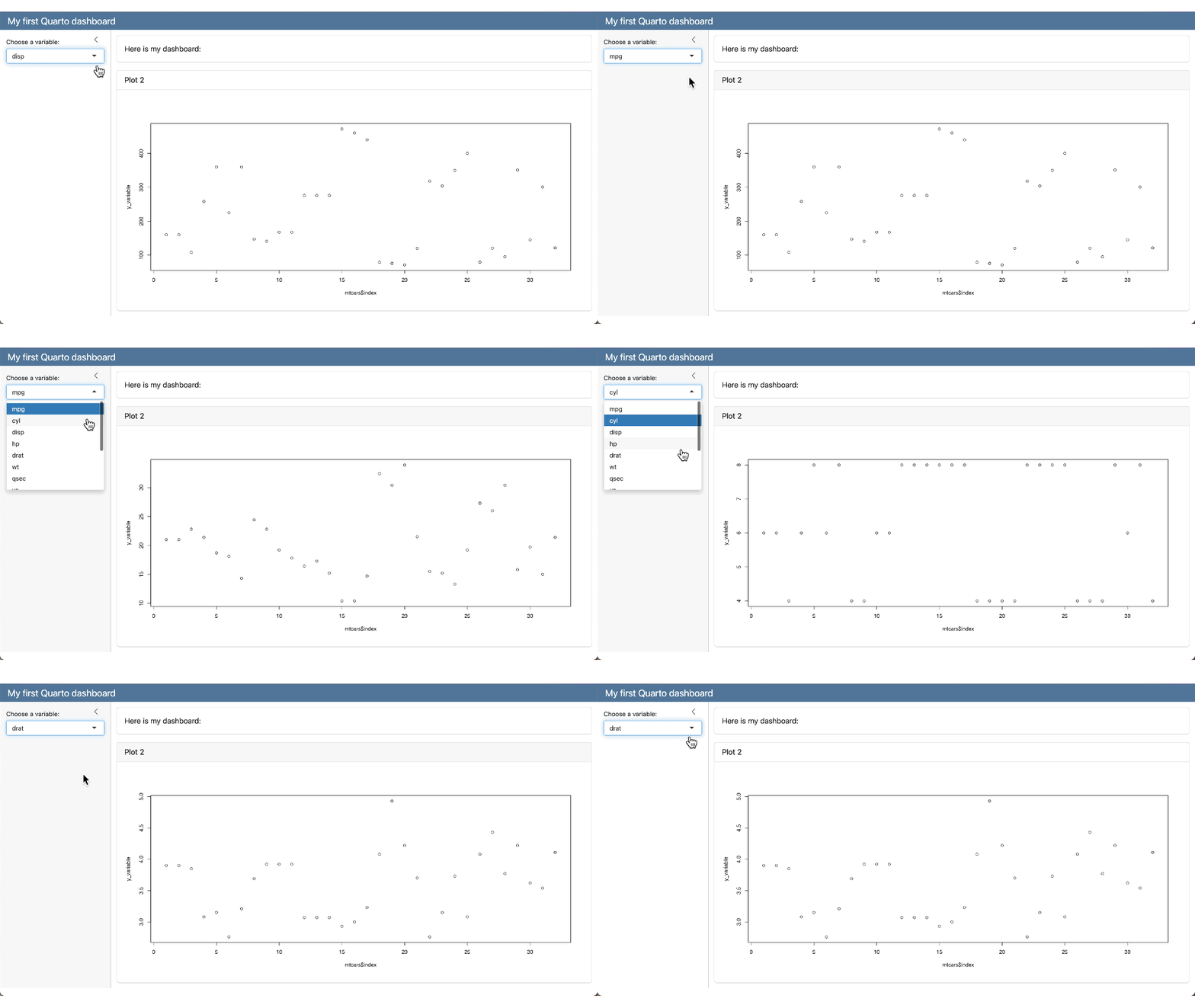
Add Interactive Components

dashboard.qmd
---
title: "My first Quarto dashboard"
format: 
  dashboard:
    orientation: rows
server: shiny
---

```{r}
#| context: setup
library(ggplot2)
```

## {.sidebar}

```{r}
selectInput(
    "variableChoice",
    "Choose a variable:",
    choices = names(mtcars)
  )
```

## Column

### Row

Here is my dashboard:

### Row

```{r}
#| title: "Plot 2"
plotOutput("variablePlot")
```

```{r}
#| context: server

output$variablePlot <- renderPlot({
  yVar <- mtcars[[input$variableChoice]]
  plot(mtcars$index, yVar)
})
```
Add Interactive Components

dashboard.qmd
---
title: "My first Quarto dashboard"
format: 
  dashboard:
    orientation: rows
server: shiny
---

```{r}
#| context: setup
library(ggplot2)
```

## {.sidebar}

```{r}
selectInput(
    "variableChoice",
    "Choose a variable:",
    choices = names(mtcars)
  )
```

## Column

### Row

Here is my dashboard:

### Row

```{r}
#| title: "Plot 2"
plotOutput("variablePlot")
```

```{r}
#| context: server

output$variablePlot <- renderPlot({
  yVar <- mtcars[[input$variableChoice]]
  plot(mtcars$index, yVar)
})
```

Add Interactive Components

Your turn

  • Open 01-dashboard.qmd and render the dashboard.
  • Change orientation to rows to see how the layout changes.
  • Change the first column to tabsets by adding {.tabset} to ## Columns.
  • Add a first-level heading above the setup chunk called Data, and another after all of the code chunks called About. Write some text under About and rerender to see multiple pages.
05:30